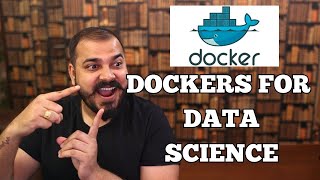
Running Containerized Workloads with Docker
Skills:
Docker & Containers90%
Key Takeaways
Deploys containerized workloads using Docker and explores its components and key commands
Full Transcript
hi pran hi jagti hey everyone Randle this side I hope you are able to hear me loud and clear and in this session we're going to explore that how it so in this session we're going to explore that how we can run the containerization applications on wter platform so it's super easy before we move forward just just give me a second e e e e [Music] hello okay so so we are uh live again and over here we're going to explore yes okay sorry my bad actually two videos were running at the same time that's why I was getting my voice back so no issue so yeah here we go once again and before we move forward let me share uh our guar rapple which you can use throughout the session okay so in this in this G ra we will going to find our uh codes you going to find our you know the PDF file the commands whatever resources required for today's session you going to get each and everything over here okay so now first we before having our Hands-On session on this Docker and related stuff it's very much important to understand what exactly Docker is and what is containers and it's super easy so if you go in one of our get rapper if you going to see the pp over here okay so the very first thing which you should be aware of what is is container okay so container is like a very lightweight standard alone uh executable software package that includes you know everything let me explain you with the help of with white word it's super easy and you'll be able to understand very clearly see what happens a lot of time like in order to you know uh run an application on cloud you need a server okay now the server like the virtual machines we need them so for in order to set up the virtual machines uh it takes time there is other lot of problem which having which we have with the vir machines but what we we can do with the help of containers we can omit those problems okay let me just explain you what exactly the container will going to be like and how it is different from virtual machines so for example this is a server okay and this is our client okay now client is making the request to the server and where your application hosted okay this is as simple as possible okay now the thing is like if there's a need to scale up your application okay so there will be chance like when your server is not capable of scaling up your application you need to add some more R show machines in order to scale up your applications now over here for each and every ver machine you have to load the guest operating system which takes time to get loaded so there's so many things which can create the hurdle for your application performance so in order to avoid this situation we have something new in as container this is one of the reason why we should use the container let me also cover for the other reasons as well now for example uh your server is having with python installed and with some 3.7 version something like that and some other packages and Frameworks are installed okay now in in your system your developer okay you are the developer and in your system you have the python with uh 2.7 I think so or whatever version you have no just because there's mismatch in version there will be likely chance that as well like for example in 2.7 we write raw input in order to collect the input from the end user whereas in 3.7 we just directly write input so little bit you know code difference will going to be there now just imagine this is just talking about one single programming language okay you have other Frameworks you have a lot of things Al together like if you're working on some complex workload there will you're not only limited to just one programming language there are a lot of program language involved database involved libraries and packages are involved with different package with different versions now you have to make sure whatever you have in developer machine you have to same in the server as well so that whatever application is running at your end it should be working on the server end and sometime it doesn't work that's why there's one problem which is very very much popular in our devop space which is it works on my machine so this is the reason and what you can do you can simply pack your application and then run that application uh with the help of container on servers now this container which we we are talking about this is very much interesting just like you know uh the containers look like in real world like in you know the real world containers we going to have everything like they can uh take the things like you ship the car you can ship the any other you know devices or whatever and then from one place to other place they can be loaded very quickly okay so Docker you know work on the same paradism okay like over here they says like code or you can say build ship and run okay so this is what the talker uh bet on so you have to just focus on building your application you don't have to worry about the configuration whatever we need to set up in the server side you just have to focus on the development side once you done with that development work what you can do just put all those stuffs okay your applications okay your applications your libraries and packages every single things just put them all together into a container now you can run this container literally anywhere now just imagine like you build an application and you want your peers your friend your team member to test your application so in that case what you can do uh you can just simply ask them to download your Docker image and from there they can run the docker container this as much easy your friend your team member doesn't have to install Python and other packages which is required for running your application because all those stuffs which is required by your application it is already there into this container this is what container meant for now let us revisit the definition of the container what is container is a lightweight stand alone executable software package that includes literally everything to need uh needed to run a piece of software which includes the code runtime system tools system libraries a lot of other settings okay this is a two image which you can see and you can clearly understand difference between the virtual machine and the containers in Virtual machines you have the hardware layer of course you have the hardware layer then you have the host system then hypervisor is the responsible for creating the virtual machines okay and then you can load your libraries and packages and of course you can run the applications okay this is the case of verion machines now in the case of container what happens uh we have the same Hardware layer of course we need the hardware and then on top of that Hardware you have host system so that you can communicate with the uh Hardware the kernel and know all those stuffs and then on top of it you got the darker engine okay now with the help of Darker engine you can create the containers so this is container one container two container three container four five and six we have the same capacity same Hardware but over here in the case of machine you can just run three virtual machine where you can literally means three application you can run over here you can run multiple applications Al together so the proper resource utilization is happening because in the case of was machines you have to create this guest oper system this EXT layer which is consuming a lot of resources of your Hardware so we don't need that we only need our applications okay and their lab and packages and rest of thing will going to be Take Care by Docker engine okay so over here uh the containers are very much good in resource utilization uh they are fast to load because they they are very much light in weight they can scale very easily because again they need you know they have proper resource very easily and just very quickly as well uh just because of like we again it provides a proper isolation as well and it's easy to Port as well okay so this is the difference between was machines and the container and how container is better than V of machine but this is not what you have to think around like uh like we have to always use containers the the solution which we work in real scenario we use the combination of was machine with container and in this today's session we also see that part so today what we do we will going to create the instance on world platform which is a virtual machine where we can set up the docker stuffs and from there we can run the container so at least you need one virtual machines where you can actually load your containers you cannot run the containers directly so you need some space and that space we're going to do it with the help of wter platforms instances okay now over here what is a Docker now Docker is a open source platform which help us to create that containers okay where our applications are running okay so do allows application to be bagage with all their dependencies into that isolated unit which is known as containers okay I hope till here everything what is what your machines what is container and difference between them and how a container gives uh some better benefits you know as compared to Virtual machines and what is container where your application is running okay now uh there's few more terms which you have to aware of which is Docker image Docker file Docker container Docker container we have already covered and Docker Hub so Docker image is a readon template which is used to create the docker container so for example we know like this is our container okay and the container having our application we know this okay and not only application all the libraries and packages which is required you know packages framework is there now in order to run this container we need something and that something is darker image okay so we need a Docker image to create your application is up and running okay now this Docker image now you might be thinking this is getting a little bit confused uh we got to know what is Docker container now what the heck this do image is now let me just give you a very simple analogy to understand like uh you got the exe file in Windows specifically and which whenever you will going to create uh click on this executable file it we going to create some task or we can say a process okay now over here let me show you with one example if I just go and open uh calculator and this calculator is basically you know um just give me a sec uh over here I can just simply open this is a executable file and after clicking on that executable file it open the calculator now if I go to the task manager you will see there's a one process is up and running that calculator process and as soon as I going to end this task or the process that will going to be get deleted okay so the executable file uh is is basically you can think of as a Docker image okay it's a template it's a you know which contains your source code the labers and packages and all those stuffs now this Docker image will going to help you to create the containers okay so you can just understand side by side what exactly uh that do image is and do containers are okay so the the exe file which we have the executable file okay a kind of you know template file which you can think and whenever you will going to click on this executable file it will going to create some task and process okay and the do image is again the template okay which contains everything about your applications and whenever you going to use this Docker image it basically going to create the docker container where your application we're going to run okay now you might be thinking now I got to know how to create the docka container now how the hack this this do image and how I can create it okay now this is something else which you have to focus on there's one instruction file there's one instruction file where you going to mention everything like uh you know uh where you going to give the all the information about your application what packages are required at what port your application could be accessible you know and what are the environment variables you know there are so many things which is required Okay so the docker container where your application will going to run and that is created through the help of Docker image and the docker image is basically a template now in order to create the do image template we have to provide all the instruction to build that so like in our case I going to use the python class application so I just have to mention like I need python install Okay and then uh the libraries which I going to use which will be flask okay and then uh other than this uh I'm going to mention like my application accessible at Port number 8080 something like that and of course we need our code okay we need we need our source code of our application okay so this four things I have to mention into that instruction file and that instruction file is known as Docker file okay so now I hope now this this four terms are not clear okay we have to go do Hub as well but yeah as of now I hope these three terms are clear what is Docker image what is Docker file what is Docker container let us read it once again Docker image is a read only template which is used to create the docker container okay Docker container is the place where your application is running it it create that environment to run uh your application you know uh in a right way then what is Docker uh what is Docker container Docker container is a renewable instance renewable instance of the docker image okay and that instruction file which we talk about is known as Docker file so Docker images are built from a set of instructions Define a text file called a Docker file the docker file contains the configuration and dependencies required for the application now images are stor in a repository and uh that is known as do her okay now after creating you know that you know you got the application okay you got the application let me just write it down uh you got the application after building the application what you did you have created a Docker image and after that you have checked that your Docker containers are up and running or not okay you have checked everything you got the application you got the docker image and you got the docker container and of course Docker file is needed to create the docker image okay so you know all this stuffs we have seen that far now in order to share your work your docka image okay because right now that image is there locally it's not you know share you know uh at some Center place where from you know your team members your friends or your uh server can access your container s access your do email so we need to put it somewhere some remote place okay and that remote place is known as Docker Hub just like we have GitHub where we put our source code in the similar way we have the docker Hub where we put our Docker images now your friend or your team member what they can do if they want to run your workload your application they just need only Docker installed okay and after having Docker installed they can just simply uh pull your Docker image from dockerhub and then create the container from it this so easy to you know work with these containers okay now your friend doesn't need the python event to run your python application this is what a beauty around the docker containers and Docker okay this is the whole steps we have to build the application write the docker file build Docker image run the docker container to test that your image is working fine or not and then push it to the docker her wow this is what a general Docker workflow going to look like okay now before we move forward also let us explain uh how the docker works okay this some more components of Docker so that it will be easier for you to understand and if some sort of things happen between you know some errors are coming in you can know how to deal with that okay so you should be aware of that how Docker works so for example if you write in this way like Docker run hello world so uh this is uh let me just uh explain it a much more better way let me just snap it this particular diagram and put it on my whiteboard so that I can use my white uh yeah I can use my pen to explain you much more better way so over here you can see one thing that here is something known as CLI and there's one thing known as uh host or you can say Docker demon okay do demon you can think of so just Docker demon is basically you can think it as a Docker uh engine okay okay or sometimes what you can think of this whole thing as a Docker server just in Layman I'm just explaining very Layman way so that you can easily understand that how this Docker works now you know this this diagram you got the client you got the server client is making the request and server is responding to that request okay this is what the client server architecture looks like so Docker client is a place where we give the instruction to this Docker server or dock engine like hey I need to run this hello world image okay I want to run this hello word image so what happens the docker that's a server we're going to process your request okay okay we need to run this image we need to create the container okay so once getting that request after processing that request they were going to find that hello page local locally if that image is not there locally AG you know they have to pull that image from the remote registry now that remote registry can be a Docker Hub or it can be a Walter repository as well okay so wter also provides that container registry as well where you can put your Docker images okay so in our case we're just going to use the docker Hub but yeah you can also use a vter Rao as well now over here uh the docker Hub is a remote place where you have kept your Docker image now if you want to run this hello word thing and hello word is not installed locally then what happens uh it will going to pull that image from this doer Hub and once it pulled successfully then if we're going to create the container now the next time again you have that you know uh need to run this hello uh Docker image in that condition what happens just give me in that condition what happens uh it will going to directly you know create the container locally because that image is already there stored locally this is how it works we're going to see this example in handson okay so let us do one thing let us set up okay let us set up our wter platform where we can actually run the docker containers okay so this is how it will going to look like okay so over here we got an option just click on deploy servers I hope uh this is already covered in our past session going to show you that how you can do that so over here there four options comes in you have to choose one of them and if you're going to choose the dedicated CPU so it is dedicated for only for you so of course it will be expensive little bit so what you can do you can go with the second option which is the share option so you know you can see that how much you know price get dropped and if there's need of any GPU or a kind of bare metal World platform also offers such kind of things as well but for right now for our use case I will going to choose this shared CP option okay now you have to choose the locations right now I'm nearby Delhi so just going to pick this Delhi option and you can choose the other reasons as well I think 32 reasons they support so you can choose accordingly as per your need okay now over here you have to choose the image okay so over here we're going to choose two one of my favorite Linus disos okay you can choose other uh or Os as well but right now I just going to go with the OB to one and you can see still the the charges around $4 40 um so now because in our case we don't have to have you know the high compute capacity high frequency you know and high storage capacity we don't need such things so what we going to do we're going to choose this one this offers 1 GB memory 25 GB storage 2 GB bandwidth this is more than enough so I just going to go with this option you can see the how the price get dropped from $14 to $7 which is just half of it now after that uh I will also going to remove this thing as well like we don't need the auto backups because we are just running for a short period of time we don't this need this one so I have removed this thing so it decreases $1.20 as well so from 7 to it goes to $6 okay now after this if you're going to scroll down a little bit more um yeah there there's an option to choose SSS Keys I've already created the SSS keys and super VY okay let me show you if you if you don't know how to create one so you can just go to this manage option and over there they they have share instruction which you can do that uh just just give me a second yeah over here so this is the instruction which they have provided which you can use it in order to create SSS keys so if you're on Windows then uh sorry if you're if you're in on Linux uh then you can use this SSS key genen okay and if you're on Windows then you can you know follow the steps with whatever they have provided with the help of puty which is a kind of application which will uh which will going to is a kind of utility which can help you to create the the key pairs okay and this is some other important troubleshoot steps are also mentioned which you can go with okay now I've already created one of the uh you know the key okay this is a key the my private key you can see very clearly how it going to look like open width and notepad so this is a private key you can see open SSS private key and this is what the public key going to look like so so as soon as if I'm going to select this option you know uh this option my PS test because over here I've already given my public key okay we need both the keys it's kind of asymmetric encryption so we need to provide both the keys okay when is public and private key in order to successfully connect to our this you know instance okay uh computer instance now in our case if you want to have some Fiber group you can also do that but right now I'm just leaving it empty and it going to give us Public Access but if you need some more uh restricted you know some some you know uh rules to set up for Fireball that which traffic can goes to your instance which traffic and goes out to your instance you can do it from here okay now you can just give any name for your server so I just going to give gfg uh wter and gfg wter or let me just write PS okay now you can just click on deploy now and wow they were going to create an instance for you so right now this installing everything uh it is in the initialization phase and we have to wait for a moment and once it is up and running we're just going to connect our instance with the help of you know that Keys what I talk about through the CMD okay through the command prompt we're going to connect to our instances okay so what we can do we can just go inside and uh just just give me a second it going to take a little bit time once it is done you can see it's showing all running so it also given us a instruction like your server may still be finish installing and booting up doing the first few minutes of activation if server does not ping you can view the console to monitor the progress so you can just click on view the console and here you can see it is failed to connect so because right now it's still still uh creating so we just need to wait for a moment once it is ready we can actually connect it okay now let me just click on WE console so your distance is currently being deployed so still not ready so we have to wait for another minute and once it is up and running we are able to you know access our instance where we can actually run the you know the docker workload okay meanwhile what we we're going to do that uh this is our application okay and this applic is very easy let me show you how our application will going to look like uh let me just write rp/ script activate and then RP so this is a virtual en which I created in my local system as well now over here just going to write Python app.py and after doing this we're going to run the application okay so if you see I'm going to open this particular URL you can see this is how our application will going to look like Namaste everyone okay so this is what our application will going to look like and this is what uh we're going to do we're going to put this application inside the container okay so it's super easy um firstly let me just close this application which is running right now okay now let me just do one more thing Let just open the visual stud code from where we can just explore other files as well Al together so over here you got the app.py this is what we have opened and our application is accessible at Port number 8080 so you have to remember you have to give this instruction in your Docker file the instruction file so inside the dock file you have given like I need the python to be installed and then you have to provide your source code so what I did like copy and then the current directory and I created one folder inside my container SL application so all the things what you're seeing right now this whole things goes inside the application folder and then I switch to this application folder and then install the you know all the libraries and Frameworks which my application needs okay and then expose the port number 8080 and then I just want to run it python app. pde this is what I want to have so we have to just uh run a simple command to build the docker image from here so just write Docker uh build hyph T and after writing Docker half and build T you can just write my Walter app something like that and then dot where your Docker file located so it is there into my current directory and it says that Docker demon is not running so you need to you know uh run your Docker engine so make sure you have the docker desktop installed if you're using the windows okay if you're using the Linux so you have to install Docker with the help of some few commands I can share that commands as well which you can do that or uh right now like the the world platform which we are creating right now over there we're going to set up the docker as well so you can just look into that that how you can configure Docker in Linux environment so it's super easy over there as well and windows specially super easy just you need to install this Docker desktop you got everything you got Docker client Docker server everything is up and running up to the Mark just you can directly use it to work with this Docker thing so it takes sometimes to get started the docker engine once it is done you are ready to create the docker image to build the docker image on the docker file so let me just again revisit this Docker file to show you what exactly meant for so you have from python latest which is a kind of Base image and this base image comes with python already installed okay so a a base image just like a minimal operating system where the python is already installed and then you have to copy the code to your application folder which is inside my container okay and then I switch to the application folder and then I going to run this particular command to install all the libraries and packages and then expose my application on port number 880 because this is where I can access my application okay and then you know the I have to just run python app.py to actually run my application okay so you can see it is up and running and meanwhile let me just delete uh few uh images which a few container which I already having and the images as well just want to delete okay okay now here what I going to do because you can see right now we don't have any image so what I will going to do previously we were getting the error but now if you're going to run the same command once again and this time start building the image okay so it won't take that much of time once it build the image you're ready to do you are ready to create the containers so as I can see we have successfully created the image and I can see my wter app is coming over here now let me see that how uh this image we going to look like okay the the container we're going to look like so just write Docker run hyphen it Hy P 8080 okay and 8080 and the name of your image which is wter app oh my wter it is my wter app now it's just going to run the container from that image you can go to this container option and from there you can just see that it's up and running wow so we are able to access our application which is running inside the container this is how you how this container works so what we did we got the application we use the docker file to build the docker image and once it is done we create the container out of it now the next step which we have to do is to push this do image to the docker Hub before that whatever going to see um yeah what we going to see that our V instance is ready or not let me just refresh this page and then I can just go over here view console so now it is up and running wow perfect so over here just write root okay the default thing and also they're just going to share you some password which you can work on so this is what you have to write in let's just give me a second let me just write it over here so either I can do it with the help of CA as well but right now just I just want to show you that how this going to look like so this is Will going to be hidden was just a password so uh give me a sec can and once it is we have provided the right password it will going to run wow so I given the password and you can see we got that successful message so we are inside our Walter instance you can see we got some message like welcome to two and this is some documentation systems the systems R information the load average the memory uses the swap memory uses the processor and the user logged in so you got some of informations about your system and some more informations over here so this is our Welter platform instance okay now over here we have to set up the docker now let me show you that how you can configure Docker over here so you have to just clone my G raer which I have sh you in the very beginning of the session just go over here and copy this and then paste this okay now the pasting is not working so let me just do one thing let me just close this console for a moment and uh what I going to do h what I will going to do I just going to copy my IP address and then I will going to open the command prpt over here and just write SSH let me just zoom in a little bit SSH have an i and then my private key and then root this is my username basically and then the IP address just do this and yes and you are successfully connected to your remote instance the wter instance with the help of you know SSH okay with the the key whatever we have created now over here uh what I would like to do uh just write get clone and the URL oh sorry we need to again copy the GitHub URL from here voila now after doing this we got we got our get rep over here so let me just get me in to this repo now over here I have to install the docker so just simply write sud s doer. this particular file contains um you know the all the STS which is required to install the docker okay so first we're going to update the your open to and then install some other libraries of framew which is required for the docker and then at last going to install the docker and then if we're going to enable the docker STS wow so it won't take that much of time you can see and it's running and once is done you know you got everything you got docker uh engine running on your wter platform instance wow now over here meanwhile what we we have to do H you can see we are able to access the container as well so let me just do this thing okay everything's done everything okay let me just write Docker over here wow it's working let me just write Docker version wow everything's working now what I will going to do I'm just going to run a very simple command okay which is Docker run hello world okay sorry hello Warrior so over here if you see this image which I have shown you in the very beginning uh is doer R hello word this is exact command which we are trying to run okay and after running this command because we using the CLI and uh this client is where you're going to give the instruction to the server and then s going to look after your request so if this image this hello word image is there locally then it will going to create the container very quickly but if it is not it will going to pull that image from Docker Hub and then it will going to you know run the container okay before that let me show you one more thing if you go to this Docker Hub oh where's Docker Hub dockerhub okay now this is the doger Hub where you can find that hello word image okay let me show you o go to the explore and after going to do the Explorer just write hello and you going to get the hello word image oh I just need the docker official published image so this is the hello word image which I'm talking about so this is the image which we going to you know pull it from the docker Hub okay and from this image we're going to create the container wow so I go over here just write Docker run hello world and then hit the enter so it says unable to find that is this image locally as I mentioned if the image is not there locally in the local registry if we're going to pull that image from remot registry in our case it's this darker Hub so when it pull that image you know pulling works over here pull got completed and then you know it just printed this image this message this message says hello from Docker this message shows that your installation appears to be working correctly to to generate this message Docker took the following steps Docker client contacted the doer demon the server the docker demon pulled that hello image from the docker Hub the doer demon created a new container from that image which runs the exe executable that produces the output which you are currently reading and then do demon stream that output with the doer client this is our do Cent basically wow so this very easy to do that now if I going to run this command once again doer run hello world let's see what happens wow it doesn't take that much of time to pull that image from doer Hub and we don't have that message okay that message which we got like unable to find this image locally this time we didn't have this message which means now this time the container whatever we have created it taking the help of the image which is already St locally and from there just created the container this is what it works now we have created our image okay my world W let me just go over here we have created this Docker image and we have seen the docker container is also working fine now what we need to do because we want to run this image to our world platform instance so what we have to do we have to put this image to the docker Hub okay so then from there we can pull that image to show you that how this will going to work okay so let's do this it's super easy you just need a dockerhub account and it's super easy let me show you how you can do that uh you can just go to the docker Hub and then you can just click on over here and create the account it's very very easy just like creating any uh social media account okay signning up just provide your email address the password you know this is the rough stuff which you have to do all the time okay so over here once you have created the dockerhub account what you have to do is to create a repository over here okay you can just go over here click on create repository and then you can just write my Walter app okay and then you can if you want to give some description you can do that just click on create okay so over here we need to run these commands Okay so what we have to do just write Docker a tag uh first of all I have to write my name uh my wter app okay Docker tag my Walter app and the name which is this now you thinking why prel you are using this tag command now before uh the tag commands we must require because here it says Docker push psi3 SL myter app okay now this image doesn't exist okay this image doesn't exist after running the T command it created this you know a new thing okay so now what I can do I can just simply push this dock image to the dockerhub okay let's do that Docker push and then psr3 my wter app now we're going to push our image which is St locally to the docker Hub okay and then we will going to pull this image to our water platform instance it won't take that much of time just we have to wait for a moment once it is done we are ready to see that so right now you might be thinking why is taking time you said prel dock is very fast now the thing is like here I just use the latest which is not the recommended thing I going to show you that how you can optimize the size of dock image because if you see the size which is 1 GB which is not a good image okay uh the size should be under you know 100 MB or 60 70 MB something like that so I going to show you that how you can do that how you can decrease the size of your Docker image we're going to see that thing as well before ending the session so nothing to worry about but yeah right now you can see our image got created we created the container from it and it's working perfectly fine now we are pushing our dock image to the do Hub I think which is already done so you can see right now we don't have any image it says it is is empty so if you're going to refresh this page you going to have the the dark image over here the one which we have up you know push to this Docker herb now just going to use this image into our you know uh wter platform so I go over here once again to our vulture platform okay now over here I just going to write Docker run hyphen it hyphen P 8080 8080 and then name of my image which is PSR 3/ my wter app now here it go it says unable to find this image locally because of course it is not their store locally because it is in you know in my wter platform instance okay we are running this image for the first time so it's just going to pull this image from the docker Hub and once it is done it will going to create the container so we need to wait for a moment and once it is done you got your application your container running on your wter platform so if you can see uh it is up and running okay now let me just do one more thing over here let just press contrl C over here I just going to write hyphen D okay Docker run I have an it okay and then this will this whole thing will not going to become come okay so now this is running in background process okay so clear now in order to access your application which is running to your vter platform what you have to do you have to go over here over here and you have to look for the IP address which is this one 139 84 whatever you to just copy this and you just go over here paste that URL and then you know on which Port our app is accessible this is Port port 8080 so just write that port and yeah your Docker container is up and running into your Vol platform instance so I change a little bit instead of hello we just mentioned Namaste what we call it in India so Namaste everyone and over here this is what you can do with the help of water platform just have doer runtime into your wter platform for instance that is only required you don't have to install python event you don't have to install flask event just that darker image is sufficient to run your application this is a very simple application which I have built but you know the comp application will going to have lot of packages lot of Frameworks which you don't have to worry about just and on the developer machine of course we we have to install that stuff and once uh you build the uh your application and then you create the doer file and then you you know build the docker image and upload it to the docker Hub and from there if anybody tries to pull your Docker image they don't need any uh packages the framework which your application needs them they only needs the docker run time which I have shown you in this world platform instance we have the docker installed that's it now I just pull my image and it's up and running I not install the python event nether the flask uh the library it worked perfectly fine this is the power of Docker I hope you can understand from here that how Docker we're going to eliminate the lot of problems the problem of configurations okay because conf there's a trap of configurations so if you change in this you have to change it everywhere okay now just imagine uh because in real world you don't have only one single machine where your application is running okay here you got multiple servers where your applications are running okay now if you get make a simple Manu change in library and frameware you have to do it to every other machines okay so this is how you can avoid this situation taking the help of Docker okay you just need to have doer installed in all the machines and whatever images you have they just they going to pull that image and then run the container out of it so over here let me again revisit uh today we have explore what is virtual machine short thing and then we have explore that what is container and then what is Docker okay Docker is a platform which is going to help you to create this container okay and then other than this we have explor the the that how Docker works okay and we have explored the important uh stuffs important Concepts around Docker which is Docker image Docker container Docker file and Docker Hub okay these four things are very much important to understand and which we saw that and we have also configured Docker runtime to a vter platform installs and then we have pull that image which we have created the Custom Image which we have created pull that image to the V platform instance and from there we have created the container and then we access our application our container which is actually running inside wter platform instance wow so this is what we have covered so far in within one hour session and now the question is how we can decrease the size okay because uh this is something which which may be very much important and uh because we have understand that there are resource efficient thing so we have to decrease the size from 1.05 ZB to some you know uh some size smaller than it and how we can do that just choosing the right base image now if you go over here h over here I have used the latest now latest contains everything so we don't need latest okay so what I can do I can just go to this Docker Hub okay go to this pyth explore and I'm just going to search for python okay and after searching for python what I going to do I just going to search for some uh small optimized base image okay so Alpine Alpine is very very popular uh base image which people use and the the best part of this Alpine is like this Bas image is of 5 MB and after installing python it will roughly around 50 mb only 50 60 MB something like that so we can do that we can decrease the size just using the right uh tag okay now let just onun this Docker build my Welter app and this time I'm just going to write another thing uh optimize image okay something like that optimize Okay so something like this now this will going to create a new image and the site is optimized okay let's see how it goes second time dat but no worries we're going to see that how much the size will going to be so it is 1.05 GB and is around 78 MB wow around 90% or 95% I think we have decreased the size of our image now just optimize okay now you can also decrease your this image further with the help of some other tactics like multi- stage build and then you have to remove the caches you you have to remove the lab packages which you don't need them so there are some few other steps which we have to do and understand but uh that we cannot cover in just 10 minute of time but yeah this is something which you can see after the session that how you can optimize the size of talk image because if the size is decreased then your performance will going to be increased and of course efficiency and the reliability will going to increase simultaneously so this is how uh the docker will be helpful okay and this is how you can utilize the vter platform in order to create the instance where you can run the docker run time to actually run your containers okay so I hope you enjoyed this session and if you have any kind of doubt you can just write it down in the comment and just remember bookmar is uh G rapple where you can find all the resources okay over here I provided some screenshot which you can also follow like the steps to follow to create the instance second first step Second Step third step fourth step fifth steps wow this is what you can do okay and other than this I've also provided the application source code okay and other than this I have provided the the docker commands some important Docker commands which might be helpful for you in for future so you can use it as a reference file where you can get all the important Docker commands Al together just one place okay then you got dock. PDF which where you can find much more diagrams around different Docker Concepts okay and then you got this Docker PBT which I have shown you okay so this is how this thing work okay before ending the session I just want to cover one more last topic which is cicd so over here one thing which you have to remember that in real time what happens like whenever you make the changes to your application you know uh the Cs line we're going to create a new do image all the time so the Cs tool is a very much important concept if you're interested in devops you can also explore the CSD steps and how you can use the docker over there to utilize it in much more efficient way okay so this is something which you can look after so this is slide which really going to give you a lot of story around the docker I hope this PP and this different resources whatever I'm providing will going to be helpful for you okay and this dockor s you can use this SS file to configure dock to your wter platform instance okay super easy just make sure you're using Ubuntu platform because Ubuntu is Dean based and it supports um AP you know oh it supports just a second it supports AP package management okay if you're using RPM based you have to use Yem instead of using AP that's the simple difference between them so this is all around Docker and this is all around how you can run the containers on Welter platform I I hope you enjoy the session and if you have any doubt you can connect us uh you can connect with the gfg team and I hope uh this session gives you some knowledge around Docker and the workload uh that how you can deploy the workload on this you know Welter platform okay that's for us uh today uh uh that's with goodbye take care and meet you soon okay keep learning keep exploring and stay motivated
Original Description
Join us for a live session to explore how Docker simplifies containerization and revolutionizes modern software development. Perfect for developers, DevOps professionals, and IT enthusiasts!
Key Takeaways:
Intro to Containers: Understand containers vs. virtual machines and why containerization matters.
Docker Basics: Learn core Docker components, installation, and key commands (docker run, docker build).
Building Containers: Step-by-step guide to creating your first containerized app and writing Dockerfiles.
Multi-Container Apps: Use Docker Compose to manage microservice architectures.
Best Practices: Tips for building efficient, secure, and scalable Docker images.
Real-World Use Cases: How top companies leverage Docker in CI/CD pipelines.
Intro to Kubernetes: A glimpse into orchestrating containers at scale.
Who Should Attend:
Developers, DevOps, and IT admins interested in containerized infrastructure.
🔔 Subscribe and turn on notifications!
Watch on YouTube ↗
(saves to browser)
Sign in to unlock AI tutor explanation · ⚡30
Playlist
Uploads from GeeksforGeeks · GeeksforGeeks · 0 of 60
← Previous
Next →
1
 2
2
 3
3
 4
4
 5
5
 6
6
 7
7
 8
8
 9
9
 10
10
 11
11
 12
12
 13
13
 14
14
 15
15
 16
16
 17
17
 18
18
 19
19
 20
20
 21
21
 22
22
 23
23
 24
24
 25
25
 26
26
 27
27
 28
28
 29
29
 30
30
 31
31
 32
32
 33
33
 34
34
 35
35
 36
36
 37
37
 38
38
 39
39
 40
40
 41
41
 42
42
 43
43
 44
44
 45
45
 46
46
 47
47
 48
48
 49
49
 50
50
 51
51
 52
52
 53
53
 54
54
 55
55
 56
56
 57
57
 58
58
 59
59
 60
60

How I got into Walmart | Shailesh Sharma
GeeksforGeeks
Upgrade yourself In 29 Days | GeeksforGeeks
GeeksforGeeks
Learn AWS Fundamentals For Free
GeeksforGeeks
Conversation With Young Achievers | Meet the winners of Bi-Wizard Coding Contest | GeeksforGeeks
GeeksforGeeks
Meet The Winners Of Bi-Wizard Coding Contests | GeeksforGeeks
GeeksforGeeks
Interview Prep Strategies | PayPal
GeeksforGeeks
OLX Interview Preparation Strategies | Hukam Singh
GeeksforGeeks
Meet Some More Winners Of Bi-Wizard Coding Contests | GeeksforGeeks
GeeksforGeeks
Live Mock DSA
GeeksforGeeks
Microsoft Azure For Absolute Beginners
GeeksforGeeks
Python for Data Science | Data Science Master Bootcamp | Arpit Jain
GeeksforGeeks
Getting Started with Data Analysis | Data Science Master Bootcamp | Ashish Jangra
GeeksforGeeks
How to prepare theory subjects for SDE interviews | Geeks Summer Carnival 2022
GeeksforGeeks
Get Your Tickets To The Geeks Summer Carnival | GeeksforGeeks
GeeksforGeeks
TED Talk Data Analysis Project | Data Science Master Bootcamp | Ashish Jangra
GeeksforGeeks
How I Secured AIR 9 in GATE'22 | Tushar
GeeksforGeeks
Learn Java Backend Development | Geeks Summer Carnival | GeeksforGeeks
GeeksforGeeks
How to Recognize which Data Structure to use in a question | Geeks Summer Carnival | GeeksforGeeks
GeeksforGeeks
Learn Data Structures and Algorithms | GeeksforGeeks
GeeksforGeeks
Interview experience at Flipkart | GeeksforGeeks
GeeksforGeeks
Lets Prepare for GATE'23 the Right Way | Sakshi Singhal | GeekSummerCarnival
GeeksforGeeks
Highest Paying Jobs in 2022 | Ishan Sharma | Geeks Summer Carnival 2022 | GeeksforGeeks
GeeksforGeeks
Geeks Summer Carnival 2022 | 5th April- 11th April | GeeksforGeeks
GeeksforGeeks
Preparing for SDE interviews | Soham Mukherjee | Geeks Summer Carnival 2022 | GeeksforGeeks
GeeksforGeeks
Full Stack Development with React & Node | Utkarsh Malik | Geeks Summer Carnival | GeeksforGeeks
GeeksforGeeks
Introduction to Open Source and Roadmap to GSOC 2022 | Geeks Summer Carnival 2022 | GeeksforGeeks
GeeksforGeeks
Web Scraping in Action | Geeks Summer Carnival 2022 | GeeksforGeeks
GeeksforGeeks
Getting Hired at BITCS via GfG Job Portal | Get Hired With GeeksforGeeks
GeeksforGeeks
How to build a faster landing Page | Geeks Summer Carnival 2022 | GeeksforGeeks
GeeksforGeeks
Geeks Summer Carnival | 5th To 11th April, 2022 | GeeksforGeeks
GeeksforGeeks
How to get ideas for Startup | Geeks Summer Carnival 2022 | GeeksforGeeks
GeeksforGeeks
Journey from Tier 3 to JusPay | GeeksforGeeks
GeeksforGeeks
Geeks Summer Carnival 2022 | GeeksforGeeks
GeeksforGeeks
Dispelling Myths and Pre conceptions of Programming Languages
GeeksforGeeks
Must Do System Design Questions
GeeksforGeeks
Understanding Sorting Techniques in an hour | Keerti Purswani | Geeks Summer Carnival
GeeksforGeeks
Get Hired at NEC | Job-A-Thon 8
GeeksforGeeks
Journey from Tier 3 college to Microsoft | GeeksforGeeks
GeeksforGeeks
Get Hired with GeeksforGeeks at SuperK | Job A Thon 8
GeeksforGeeks
GeeksforGeeks: Redesigned
GeeksforGeeks
From Tier 3 to cracking multiple interviews | GeeksforGeeks
GeeksforGeeks
Live Mock DSA
GeeksforGeeks
Youtube Data Analysis | Ashish Jangra | GeeksforGeeks
GeeksforGeeks
DSA Self-Paced Course Preview | Sandeep Jain | GeeksforGeeks
GeeksforGeeks
GATE Live Classes | Prepare for GATE CS 2023 | GeeksforGeeks
GeeksforGeeks
Journey from JIIT to Adobe
GeeksforGeeks
Life Is Unfair Ft. Shonty badmash | LIVE Discord Session | A GeeksforGeeks Exclusive
GeeksforGeeks
Interview Experience at Google | Tech Dose
GeeksforGeeks
Live Mock DSA
GeeksforGeeks
Interview Experience @ Amazon | GeeksforGeeks
GeeksforGeeks
My journey through the tech world from India to US | Vidushi | GeeksforGeeks
GeeksforGeeks
Complete Interview Preparation Course | GeeksforGeeks
GeeksforGeeks
Live Mock DSA
GeeksforGeeks
Getting Hired at FiftyFive Technologies | Job-a-thon 9.0
GeeksforGeeks
GFG Karlo, Ho Jayega | GeeksforGeeks ft. Khaleel Ahmed
GeeksforGeeks
How I got job offers from 2 big companies : Arcesium & Microsoft | GeeksforGeeks
GeeksforGeeks
LINUX for Beginners | GFG x Itversity
GeeksforGeeks
My interview experience at Walmart | GeeksforGeeks
GeeksforGeeks
Get Hired at Speckyfox
GeeksforGeeks
Live Mock DSA
GeeksforGeeks
More on: Docker & Containers
View skill →




Related Reads
📰
📰
📰
📰
Terraform Cloudflare DNS Checklist Before Every Apply
Dev.to · Oleksandr Kuryzhev
Building a Windows Laptop Monitoring Agent with Webex and Email Alerts
Dev.to · sam codex
What Is Infrastructure as Code? A Beginner's Guide
Dev.to · Muskan Bandta
I just released SKTR, a deterministic architecture review CLI
Dev.to · Pablo Rubianes 🇺🇾
🎓
Tutor Explanation
 DeepCamp AI