Build MVC apps with Microsoft Graph - June 2019
Key Takeaways
Build MVC apps with Microsoft Graph using the .NET SDK
Full Transcript
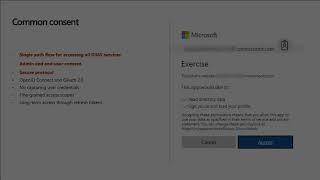
welcome to this screencast on developing with the Microsoft graph let me first talk a little bit about what this screencast is and what you can expect from it before we start diving into the content this screencast is a going to accompany a hands-on lab and a training module that you can take advantage of that goes along with everything you're gonna find in this screencast specifically you're gonna find in this screencast is really going to be a example of someone presenting the content from the training module as a way for you to learn how you could train use this module and delivering it to a different user group or to at a conference however you can also use it as self-paced learning now the way that this module is set up is that it's broken up into a series of a couple different sections we'll go through each one of them in just a few minutes each one of these sections is going to finish with a demonstration now the demonstration we don't walk through the entire step of creating the application or walking through the steps of writing all the code instead we look at the final solution that has already been built and kind of picked through the code and pick through the important parts that you should take advantage of or you need to take note of and we'll see it working as well if you want to go through and you want to build the application you want to see how it's being built then what we will recommend that you do is go check out the hands-on lab that accompanies this module because the hands-on lab each of the exercises maps to one of the demos inside of this screencast that you're going to see so if you want to see how to build it you want to walk through the steps you can walk through the hands-on lab exercise that accompanies this module and get to the exact same place that we're showing you here in the screencast instead we're not going to show in the screencast all the individual steps of creating the application and part of that is because things change on a rapid cadence and the lab is gonna have the most updated steps and dependencies and stuff that you're going to need the screencast is more or less showing you how the thing works or how the final solution works so that's how you can learn more about taking advantage of this content and how we've all have we've structured this let's go ahead and dive into the actual module itself in this section we're gonna start by looking at building asp.net MVC applications with the Microsoft graph and leveraging the Microsoft graphs dotnet SDK we're gonna start by looking at an introduction to what the Microsoft graph is and its API then we're going to jump into a getting started on how to create an application and then talk a little bit more about SDKs and code samples office 365 developer vision focuses on the users experience and their data and as a developer you can bring your application into the user experience with over 1.2 billion users of office worldwide this is a huge opportunity to provide a window into your application as well as being able to connect into their data and add intelligence to your application there are currently over 850 million events created each month and a total of over 400 petabytes of data stored in the service that can add value for your users the Microsoft graph is the gateway to your data in the Microsoft cloud as you see there from the bottom of the list we've got a lot of different services and data types that we can actually take advantage of from office 365 and Microsoft and it's all considered part of the Microsoft 365 platform we can work with mail and calendar contacts tasks we can work with content inside of SharePoint sites and lists files inside of onedrive things inside of Microsoft teams think users inside of Azure Active Directory there's so many different things that we can take advantage of the nice thing here that each one of these different services usually has its own API where we can talk to these different services to get the data out it can be challenging to go get the data from all these individual services as they each have their own endpoints they may have their own permissions and that also means that with their different access control that we have in talking to these different services using an OAuth style authentication via Azure Active Directory that means that each one of these different endpoints is going to have to require their own access token one of the nice things about the service called the Microsoft graph is that the Microsoft graph is gonna serve as a proxy endpoint to all of these other different services it's gonna in cover encompass things such as office 365 Windows 10 and enterprise mobility and security and it brings all these different services under one top level service called graph Microsoft comm the advantage to using the Microsoft graph is that it's going to allow you to just have a single point resource which means you're only going to need a single access token to be able to talk to all these different services they still have their own individual permissions or as we refer to them as scopes so that everything is still secured in a very individual way but this makes it easier for developers to build applications now the Microsoft graph is your gateway to office 365 and what I mean by that is that it is a single resource that proxies multiple Microsoft services I'll talk more about this on the next slide now it also allows for easy traversal of objects and relationships so while there are lots of different Microsoft 365 services such as talking to onedrive or talking to outlook for contexts and calendars there's another one for tasks one of the nice things about this is that how all of these different objects are related to each other the Microsoft graph has put those relationships into the graph and it's built like a graph representation of all of these different endpoints what's neat about that is that now I can easily traverse from one entity to another one even if it crosses different endpoints because the Microsoft graph they've merged all these endpoints together for us it also simplifies token acquisition because with all these different services in Microsoft 365 we would have to obtain a separate access token for each one of them the reason for that is because every single service in when you talk to a different service that has a different end point you need a separate access token for each one well when the Microsoft graph proxies all these together we no longer need to do that because all of them have the exact same endpoint and they're all gonna go to the graph and then the graph is gonna make those calls and our behalf to those other services or other endpoints that we would need to connect to this also is going to eliminate or a graph is also going to eliminate the need for a traditional discovery service because like in the past when we didn't have the graph we had to make these calls to a discovery service to basically ask the different endpoints with Microsoft 365 where was my onedrive endpoint or where was my outlook end point because the URLs could be different based on the user in the tenant we no longer need to do that now the graph can figure out all that information for us by just if we just go to the slash meet end point or the slash my organization and point to get information about me or my tenant now one of the nice things about the office 365 API or the Microsoft graph API is that I mentioned that they were a it was a like a proxy to other endpoints that each one of the different services implements like we have different office 365 services and api's for Outlook or for onedrive or OneNote or planner Microsoft teams etc well the nice thing about the graph is that again it's a proxy to all those services so you don't have to know how to talk to each one of those services or obtain an access token for each one one thing to keep in mind though is that because it's a proxy you may see new functionality and features show up in these downstream endpoints prior to when they get them and they show up inside of the Microsoft graph and it makes sense because the Microsoft graph is a proxy and it can't expose functionality that doesn't exist downstream and one of the services that is proxying so you may have to wait a little bit for it to show up either in the beta endpoint or in the v1 endpoint of the Microsoft graph some examples of this are web hooks when they were introduced to Outlook and also when time zones were introduced for a when the time zone support was introduced for calendar items now office 365 has a single authentication flow for office 365 and the Microsoft graph users are going to sign in using a technology called Open ID Connect which is an open standard and what that does is that once people have logged in there's this nice little envelope wrapper that will include details about the individual who's just logged in as your ad is going to be used for all of the authentication the Microsoft graph is built on top of the authentication model of Azure ad office 365 is also built on top of the authentication model of Azure ad so both of these services trust Azure ad by having this single level of trust that they are single service that they both trust then we can leverage the authentication to take advantage of both of these different services with the same authentication flow this authentication flow is also going to support multi-factor authentication also referred to as MFA and federated user sign ons and it's going to support all different kinds of applications from device applications such as those on a mobile device websites single page applications that live 100% McClay n't or as a headless application with no user involvement also referred to as a daemon or as a service based application you'll be able to pin applications to your office 365 app launcher from the my apps page which is like that little menu that you have in the top left corner within office 365 now one of the concepts we have with Azure ad and it comes into play with the Microsoft graph but it really is really an azure ad thing and that's called the common consent framework so what happens is is that if you think about permissions and being able to gain access to some service you really have like a triangle of things that you need we have the permission we have the user or the application and you have the resource that you're trying to talk to so the resource is the Microsoft the user in the application and then you also have the permission so the user needs to have the permission to the resource to be able to talk to it well the first time the user goes to log in to them up to Azure ad to obtain an access token to talk to the graph as your ad is going to look and see has this user granted this application access to the Microsoft graph and specifically has it granted access to with these permissions and so the way that this works is that the if if the user has not gone through this process yet then the common consent framework kind of kicks in and after they log in you'll see a dialog that looks a little bit like what you see there on the right of the slide what this is saying is that effectively behind the scenes it's saying you've never granted this permission to this endpoint with this application so do you now grant that permission and so what this is doing here this is called the delegated consent but what this is doing is this is me granting and a specific application so in this case here it says the publishers website what's the name of the app I'm going to grant this permission to the Microsoft graph or in this case specifically is I'm just granting it to Azure ad so reading directory data and signing me in and reading my profile if I was talking to say my files or to my mail it would have other permissions that were listed there as well this is like an end-user consent I also have the ability to grant admin consent and what that means is that that is me as a tent administrator granting these permissions on this by this application to a resource on behalf of everybody in my organization that's a much more widespread permission that I'm granting and it's not always required but it is required at some point so it's just an option that's available to you now with the graph we do have two ways that we can authenticate or with Azure ad there's two ways we can authenticate and the graph supports both of them now one way you can do is as your ad only and what this is is that this says that you're only going to be using a work or school account to authenticate to the Microsoft graph or to Azure ad and then use that to go talk to that access token to talk to the Microsoft graph the other option is you can use converged auth which is as your ad and/or Microsoft accounts and in this case here what's nice about this is that depending on how I log in I use the exact same code in the Microsoft graph the same end points the same SDKs to get my files either in onedrive consumer or onedrive for business and well I've just used one drive in as an example the same is true for calendar and contacts and email inside of outlook comm or in exchange in office 365 but the nice thing about this is that the the data that you're going to go fetch is all dependent based on the login of the user that actually logged in so I don't have to I don't have to use I'm not to specify any special code or any special API sore endpoints to get data for consumer accounts or for business accounts now again with with the SharePoint framework this doesn't really apply because we're only gonna be logging in to SharePoint Online using an azure ad account and not a Microsoft account now let's talk about Microsoft account and Azure ad accounts this is something I just kind of mentioned a minute ago where many apps will let you use either a Microsoft account and a as your ad account or I guess the it's more of an or the advantage here is that everything is the exact same it's just a setting of what you support when you register the app inside of Azure ad the Microsoft graph has a single endpoint single for all data be their business data or consumer data now let's talk a little bit about creating an asp.net web app for MBC that's been configured with the Microsoft authentication library in the owin middleware for authentication with Azure ad so the way you're gonna do this is you're first gonna start by creating an asp.net MVC web application so you can go through the process of creating the app but you don't want to use the visual studio Wiz for configuring the authentication just yet you want to just just focus on creating the application itself the second step is to ensure that your application is using SSL so there is a redirect URL that it must be set up to use HTTPS in order to work with an azure ad application and then the next step is to be to configure your application for working with the o and middleware and the Microsoft authentication library this involves installing a handful of dotnet or NuGet packages and then modifying the code in your project to make it work so the Microsoft authentication library in the O in middleware is all distributed using reusable packages so these are the ones you're going to look at to include both the MSA L & O and middleware that we're going to need to use so the last one that you see there the Microsoft identity client that is the Microsoft authentication library MSA l and the ones above it are all the O in middleware and what that does is those are things that MSA L are going to rely on and it's using the OU and middleware that's going to handle a lot of the communication from Azure ad back to our web app by intercepting things such as the access token the authorization code and things like that to be able to define and provide access tokens to your application that we're going to need to use with the Microsoft graph now in this first demo what we're going to do is we're going to go take an existing project and we're gonna use that project to create a modify it to set it up to work with a new azure ad application we're going to take a look at how this project is set up and how it works and in a future demo I'm going to show you how to add all the extra stuff that we need to get it to work with the Microsoft authentication library and Adger ad so let's go ahead and dive into this demo in this first demo in the screencast we're going to look at how to create an asp.net MVC application that we're going to use throughout this other demos throughout in this screencast to demonstrate using Azure ad for authentication and to call the Microsoft graph now like the other Microsoft graph related training modules and screencasts we're not going to walk through all the details actually creating the application in this screencast or in this demo and instead what we're going to do is we're going to look at the application that we have already built the reason we do this is because the the version numbers and dependencies and UI for different selections can change over time and so to keep things from being from from being getting confusing what we've done is we've created a hands-on lab in a training module that accompanies this screencast and so if you want to see the final version of this project or if you want to walk through all the steps of creating this project please refer to the training module that's associated with the screencast and you can use that to go through a step by step of creating your own application so what we've done here is I went ahead and I just said file new project and then underneath the web option I chose an asp.net web application so once I did that the applications all been created I then said that I wanted to use MVC as the style for the project and made sure everything was working now once I did that I then had to go through and go add in a bunch of additional new get packages so if I come over here to the list of all the different packages that are available to me what you can see is I installed a bunch of these oh and middleware packages so I've got Owen for the host system web I've got it for the open ID connect I've got it for cookies I've got it for also for Microsoft identity client this is the Microsoft authentication library and then I've got all the stuff that we need as well for the graph talking to the Microsoft graph once I did that I have installed all those different packages I then went and created a own startup class by creating this startup that CS class and so what this is doing is I went ahead and created this class as a using the template for the owen startup class you can see here that what this does is it says you're gonna go run owen startup which is gonna be listed right here under tutorial startup now this is just going through it's a partial class that's being created with the configuration and passing in the app on how to go through and configure it so we'll see how to do the authentication stuff in just a little bit more in just a minute so underneath models one of the thing we did is we also created this alert and this alerts just got three little properties in it and we'll use this as a way to flash error messages in the different views of the application now the next thing I did was to update the global layout of the application so if I go over here into the shared view under slash layout what I did is I just updated the entire UI for my application now this is doing things like leveraging bootstrap and setting up a whole bunch of stuff for our navigation it just adds in bootstrap for some styling and uses font awesome for some simple icons and it also defines a global layout with a navigation bar and uses that alert class that we just defined a minute ago to display any alerts i also inside of the CSS file under cite that CSS i also added in a little bit of CSS here for some styling of my my project now let's look at the default page for the application so underneath home slash index dot CSS HTML and what you can see here is I've created a application here with this just this big Jumbotron or is it the jumbotron right here that's part of Twitter bootstrap I've also specified if the user is currently authenticated then I display the user otherwise I display a sign-in button where they can sign in now I'm going to create a little helper function to create an alert and pass it into the view in order to make things a little bit easier so I'm going to do that inside of this base controller so I've created a base controller and I replaced I went there and I created this function here called flash or this method called flash and all this does is it takes in a message and if we're in debug mode and what it does it's just gonna create a collection of alerts and add those alerts to this little temp data collection here so any controller can inherit from this base controller and gain access to the flash function to display things so if I come back over here to my controller I'm gonna go update this to use my base controller so that we can flash little messages so now if I go run my application it's pretty straightforward it doesn't really do anything but just take a look at it before we start adding in the authentication and calls to the Microsoft graph so you can see our application up and running and so here if I clicked on click here to sign in it's not gonna work just yet because we haven't gone through and setup any of the details to go through in the sign-in and to get this application actually running that's what we're gonna do in a future demo so let's jump back to the slides and let's continue on with the with the slides now in this second section we're gonna focus mostly on the azure ADP so we're gonna look at how we can leverage the azure Active Directory authentication or admin Center to register an application and set up the credentials and configure the kind of an application that we want to use and then we're gonna see how to modify our application to create everything we need and set it up to work with azure ad let me talk a little bit about different endpoint versions that we have in Azure ad we have a v1 endpoint and a v2 endpoint v1 came first obviously v2 came second now how did this work well in the v1 endpoint there was two characteristics to it that were that are worth noting here that and why we don't use it in a scenario for the Microsoft graph anymore one of the scenarios is that as your ad only supported in the v1 endpoint only supported the Azure Active Directory authentication it did not support any other styles of authentication and so what that meant is that if the user was logging in with a personal account or a consumer account also known as a Microsoft account and they wanted to access things like their onedrive consumer account or their outlook comm account things like that they our application would have to know what kind of account they were signing in with and we would have to send them to a whole different authentication model so that's one downside because as your ad or the v1 endpoint only supported work in school accounts or accounts with that leverage Tazz rady the other challenge that we had is that with a v1 endpoint it required what's called static consent which meant that every single permission that our application was going to need when the user first logged in they were gonna have to grant all the permissions upfront at that time had to declare everything at the very first time but what that's going to allow us to do then is that we don't have to worry about that that extra complexity we're gonna let azure ad figure all that out for us so that's one nice thing that's the first two points converged authentication accept sign-in for both Microsoft personal accounts and Azure ad work in school and it enables the same code the code that we write for using the Microsoft graph for things like reading mail and retrieving contacts now the next thing that's really important here is the dynamic consent and with nice about this this differs from v1 where we had static consent where now every time you go to request a access token from Azure ad you specify the permissions that you need for that access token now let's say for example in the example I gave a minute ago when the user went to login they had to grant all permissions that this application could possibly need up front well now when the user signs in all I really need to do is I just need to request the user impersonation scope and that's gonna allow me to get information about the current user just get their name their email address etc and now they get a much better experience and they log into my app maybe they're only gonna use the capability to reorder reorganize their email into different folders when they go to do that I can request another access token that says I need mail dot read and mail dot right and when I do that then the users only be prompted for those permissions if they had not already granted those permissions to the app the next time they go to use the app same thing it's gonna go check to see we need these permissions as your ad says I can tell this user has already granted those permissions so we don't need to go through that whole process a second time but we don't have to request permissions for their calendar for their tasks or for their files in onedrive we only need to ask that stuff when they actually need it so that's a I think that's a better experience because your users aren't hit with a lot of stuff and you've seen a similar model with this like on your mobile devices you an application may like if you are gonna use one of these social apps and you wanted to post something to this social network let's say you just want to post some text well it doesn't need a permission for that but then if you wanted to say post a picture that you had taken they need access to your photos on your phone and so it prompts you for do you grant this application access to your photos yes or no the next thing is maybe I want to take a picture and have it send right away so then it's gonna ask for permissions to your your camera or you want to do a little video so now it wants permissions to your camera and your microphone if you had installed the app and the first time you want to log in it says I need access to your microphone and your camera and your photos you may be a bit turned off by the app and say I don't want to give you all those permissions I just want to post some text to this social network that's what dynamic consent is all about it allows you to incrementally just grant these permissions and you can learn more about the v2 endpoint if you go to aka.ms/offweb alii zhilie incorporate that into their request so now we use the scope parameter which is supported by all the libraries to compound and combine both the resource and the permission when you build applications with Azure ad v1 you also had to register all permissions the application needed that was called static consent we just went through that a minute ago the user had to consent to all of those things statically but with v2 we can now send scopes that you want at the time you want them we don't have to ask for them all upfront that's the dynamic consent we also going to change the contents of the ID token this is the the token that is going to be included with the response from the login that contains information about the current user like their email address and their name etc and this is going to better conform to the open ID connect of one specification for example we're using things like preferred username claim instead of a claim called UPN and also in the past if you needed a client application or a single page application or a web app or a web API or a daemon service we had to create multiple azure ad registrations and wire up each of the relationships between each one of those and it was a bit of a pain but now in the v2 this now is going to enable us just one after registration across a single logical application and we can then open up all the different areas that we support for the different applications such as representing a native in a web application if we wanted to for more information you can use that link at the bottom of the slide to learn more about the v1 vers v2 key improvements now let me talk a little bit about working with the different SDKs when it comes to Azure ad now the nice thing about this is that you really are going to self-select yourself into which one you're going to use if you're using the v1 authentication endpoint you have to use the Azure Active Directory authentication library or a Tao it only works with v1 if you're gonna be using the v2 endpoint with the dynamic consent and some of the other things we've talked about which is the recommendation from the Microsoft graph team you're gonna be using the Microsoft authentication library this targets the v2 endpoint it's got a new conceptual model of two different kinds of applications once called a public client app and one it's called a confidential client app a confidential client is one that has a like runs and a as a web experience where you can put both the client ID in the secret in the application where a public client application is one going to be it to be more like a native app where I'm not gonna be able to provide the the secret I'm going to be prying providing the client ID we also have a couple different platforms on where this is supported there's MSA l net for dotnet client Windows Store asp.net core Android iOS xamarin Universal Windows platform there's a JavaScript implementation and objective-c implementation for iOS and Mac OS and an Android implementation as well now where are we going to register our applications um this has changed a little bit over the years but now where we would recommend that you go is to go to the azure ad admin portal that's at aad portal de asher calm now there's a bunch of advantages to using this first advantage here is that you don't need to have a asher subscription to get to the azure ad admin portal you can log in with either a Microsoft account or an azure ad account and you'll see in the demo when we log in to this it looks like the azure portal accept the options of all the different as your resources that are available to us are all gone except for a sure ad this new admin portal is also going to allow you to create and manage both v1 and v2 style azure ad applications so you can have access to both the v1 and v2 authorization endpoints you're also going to be able to leverage either a towel or MS al for authentication and again as I said in the last slide that really is going to be dictated based on what you end up doing with you're using either the v1 of the v2 endpoint but because we're dealing with a Microsoft graph as I said before you really are gonna want to focus on using the v2 endpoint now let's talk about how we register in Azure ad application using the azure ad admin Center or admin portal application registration starts by creating a brand new application you're going to do that over that you see on the left hand side by selecting I want to create a new application once you create your application you are also probably going to want to define at the same time or in a subsequent step the redirect URI that you're going to want to specify and what this is is this is gonna be telling Azure ad when a user logs in what URLs are you allowed to redirect them to and so I need to whitelist the URL for my web application when you're doing this in development you're probably gonna be pointing to a localhost but when you do in production you're going to want to change it to point to your well-formed you are or well-known URL because we're working with what are called confidential clients which is a way for us to secure both the client ID in the secret I'm gonna need to create a secret for my app and this think of this as like the password for my application and that it's going to use to login with Azure ad you're gonna create the secret this is gonna be shown just one time so after you create it make sure you create a copy of it you can always create a second one but it's for security it's only going to be shown once and then the last step is you can optionally set API permissions and these are things that permissions that my app is going to need in order to talk to whatever what are the resource so if I wanted to talk to the Microsoft graph then I get specified the permissions that we want to use now this is this is dealing with what's called static consent to where I'm defining the permissions up front but the Microsoft authentication library and the v2 endpoint as I've already discussed in this screencast we have the ability to set it up for dynamic consent which means that we can define the permissions we need at the time that we're actually running the app so let's see a demo on going through and creating our application so we're going to create our azure ad application and then after we create it we are then going to go modify or see how we've modified our application in order to use the settings for our app registration that we created with Azure ad in this section what we're going to do is we're going to create a new ad web app registration using the Azure Active Directory admin portal and then once we do that we're then going to go update the application to use the new as your ad application that we've just now created so what you're going to do is you want to double check on what the URL is for your application so what I'm gonna do is I'm gonna select the application and then when I come over here and open up the properties window so come down here and select properties window and then I'll go ahead and just move this up here make it easier to see so select properties and what you want to do is you wanna take note of what this URL is that's gonna be where your application is going to load you're gonna need that in just a minute I'm gonna go ahead I'm gonna copy this and then when I come back over here and we're going to create a new app registration so I'm gonna create this new app registration and I'm gonna call this my asp.net graph tutorial and I'm gonna specify that we can use any account to test this out with doesn't matter what what its gonna be and go ahead and click register to go and create the application and once to do that I'm then gonna come over here to the redirect URI and I'm going to specify the URL that I want to redirect to to be equal to the URL that we have in our application that we just saw a minute ago now furthermore if I scroll down a little bit I'm also going to tell it that I want to get ID tokens back as well it's just something that we're gonna want to use inside of our application so I'm gonna go ahead and save my changes now before I go much further than this let's go back to the details for our application and let's copy the ID of our application we're going to need that so over here in Visual Studio I'm just gonna create a new file real quick just a text file and we're going to put in our ID right there we'll come back and we'll use that in just a minute now the next thing we need to do is I need to come over here to our certificates and secrets and I need to create a new certificate or secret for my applications I'm going to create a new secret I'll call this my one-year certificate or password and I'm gonna copy my secret and I'm also going to put that over here inside Visual Studio because we're gonna need that in just a minute all right so now that that's done let's now go back to our application and let's go update our application to use this stuff that we just created so come back over your individual studio I'm go to my app let's look at the web config and in the web config we don't see anything here where we can actually put in our password and in fact we don't see that because ah here we go we have a private settings config so let's rename this get rid of the dot example off the end of it and I'm going to go pass in the secret so I'll just grab that put that right here I didn't paste it right let's grab it again copy paste and I need the ID that and then I need to specify the port so if you remember our application was on port 64 1:07 so just copy this entire let's see 64 1:07 so 64 1:07 here we go so you can see here we got a couple different settings that have been defined here so now let's come back over here to our web config and let's make sure that our private settings are going to be listed and yes they are good okay so so what I want to do is I need to go update our application to be able to use all this in the azure ad for our authentication so I'm gonna go to startup off that's CS and I've added in a bunch of references here for being able to leverage the Microsoft Owen middleware and the Microsoft authentication library for authentication so if I open this up go fullscreen which you'll see here some of the first things we're doing is we're fetching the app ID the secret the redirect URI and the Scopes from the settings that we created earlier I then I've gone through and I've added in some other stuff to handle the authentication so here we're going to be creating our Open ID Connect authentication setup and it set that up first I'm gonna specify the client ID I'm gonna specify the authority and when you say common like this that's saying that let asher ID figure out where this what the authority is I could specify just my tenant ID here and that would make it so that people only inside my tenant could log in I'm defining all the Scopes that we want so here's some default scopes plus the ones that we have in our our private settings configuration file and we set some other stuff up here as well a little bit farther down what's gonna happen is that when an authentication code is received we're gonna want to run this code right here authorization code received now when you get an authorization code what that's going to do is that's simply going to give the application this code that then you get the application can then use to go fetch an access token for a specific user so we get this authorization code that's gonna get returned back here I'm going to call the confidential client application builder for this app ID that we've created an azure ad I'm going to use this redirect URI and this secret and then what I'm going to do is I'm going to call a little bit farther down here I'm gonna call use the ID client so the one that we've created up here acquire token using the authorization code and I'm gonna use that code that was passed in and I want to code with these scopes on it so what that's gonna do is it's gonna prompt the user to grant permission if for an access token with these scopes and if they haven't granted permission for those scopes then we will be prompted to go authenticate again once that's done I then have my access token and I can then go get information about the user by using this graph helper class that we've created to go fetch some information about the end user now let's see where this is actually being implemented I come back over here to my app and I go over here to my controllers inside of the controllers you can see where I have an account controller now that I've defined so on my signing controller what this is gonna do when I click sign-in if the users not authenticated then I'm going to call the get Owen context authentication I'm gonna issue a challenge and what that's gonna do is that's what's gonna prompt the user I'll redirect them to the azure ad login page I'm gonna say redirect them back to the current URL of the site and the authentication type or the defaults we're using is the authentication type enumeration that's been provided for us on sign out basically just does the inverse I'm gonna clear everything out so find who the current user is I want to make sure I remove them from this session store the session state that is created by the Microsoft authentication library and then I'm gonna clear out the session store and then I'm gonna go ahead and sign them out and redirect them back to the home page now one thing I mentioned earlier was you saw that I had a graph helper and what that was doing was that was fetching information about the current user so this is something that we have Korea will see a little bit more detail about working with the graph in the next demo but in this one we're gonna do something really simple we're gonna get a new instance of the graph client and we do that by using this delegate authentication provider which is part of the coming from the Microsoft graph once we've done that we're going to say I want to go once we've authenticated I want to make sure that we are going to add in to the graph client I want to add into every single request that comes in an authorization header to the HTTP request with the value of bearer space and then passing in the access token so then that's going to use the graph client to say graph client go to the dot me endpoint issue requests asynchronously and that's what's gonna give me back a user object back here so let's see this work so I'm gonna come over here and let's go ahead and run the application and it's going to prompt me to sign in so you're gonna come to the application let's go ahead and let's sign in so what I'm gonna do is I'm going to click sign in and it already knew that I was logged in as the current user so it went ahead and it signed me in now let's go let's see what that experience looks like again so let me go ahead and sign out and I'm gonna go click sign in again and it already has my information already cached on the current machine so it's already stored in a cookie so let's try this in a private window let's go to the same URL we'll go ahead and sign in we use the same account we're using before and then we will use put our password in and we've already granted the permission so we shouldn't have to go through and have a permission request but we can see it is getting information about the current user so we can now see that we're currently logged in and we can even see the email address it's coming back as well so at this point the application has an access token which has been set in the authorization header of the API calls and this is the token that's can allow the app to access the Microsoft graph on the user's behalf however this tokens got a short life - it expires in about an hour and this is where the Refresh token becomes useful because the Refresh token is going to allow the app to request a new access token without requiring the user to sign in again and the way that's doing that is because the Microsoft authentication library and the token cache object is being used so I don't have to implement any token refresh logic when I call the method acquire token silently async that is what's going to do all the logic for us at first check to see do I have a cache token and if it's not or if it's expired then if it if it if it does have one with those scopes and it's not expired it'll return it otherwise if it is expired or if it's gonna expire in the next minute then it will cat it will use the cached refresh token to obtain a new one and I'm gonna use that one and the I can use that one in and another another option or another in a separate request so in this sample you saw how to create an azure ad application we walk through the code inside of an asp.net application MVC app on how it is going to fetch the token and login log the user in and fetch the token in this last section we're going to look at how to leverage the Microsoft graph inside of our asp.net application we're going to talk a little bit about the new get packages that we're going to need in order to talk to the Microsoft graph a little bit more about authenticating with Azure ad and then we're gonna look at the how to create an instance of the graph service client so the Microsoft graph an SDK is made available to us through a nougat package and if you can find that using by just looking for Microsoft graph it has a dependency package that's associated with it but it'll install that when you install the new get package so how do I obtain a what's called a Graf service client and what that is is that is gonna be the actual API that we're gonna use to talk to the Microsoft graph so first I'm going to obtain an access token from Azure ad by authenticating now here what you can see is I'm saying get a user access token asynchronously and what we're doing is we're leveraging the Microsoft authentication library to do that so I'm creating something called a confidential client and I'm using the conference or client application builder to create our confidential client app I do that by calling the create and passing in the ID of my asher ad app and then passing in the secret and the redirect URI of where we can go back so then I'm going to call dot build once that's done I'm then gonna be able to use that client the CCA to go through and obtain the access token so if you see a little bit farther down on the slide see where it says CC a dot acquire token silent that's gonna pass in a list of scopes so all the permissions that I want my application to request access to for and then I'm gonna also say I'm only looking for the account the current account that's logged in I execute that asynchronously that's gonna handle all the authentication stuff and then go obtain the access token for me that silent method the acquire tokens silent what that's doing in the background is that's going to look and see do I already have an access token for this user that is not expired and if the answer is that yes you do have one that's not expired then we're going to use that access token if you do have one that is expired then it will try to reach out using the Refresh token over to Azure ad to obtain a new access token that's been refreshed and you can do that using the Refresh token and when it receives that it'll update its token store or otherwise known as a token cache if that doesn't work then you have to trigger a interactive login which is going to redirect the user over to Azure ad to login that is probably going to happen that's definitely gonna happen the first time they use the web app but it may happen if they haven't used the web app for a very long time once you obtain the access token you're then going to need to create an instance of the Microsoft graph API and you do that by creating an instance of the graph service client so the way you do that is you're going to create this thing called a delegate authentication provider and so here I'm going to create a new provider and I'm gonna pass into the provider a anonymous function so in this case here I'm passing in the request message that comes back so this is the the message that with the request that I get from that when yet when the Microsoft graph is going to reach out to call them the the SDK reaches out to the REST API this request message this is going to fire when the request actually happens and so in this case here this is where I'm gonna go get a reference to my access token and then once I get the access token I can then include it in the request header specifically the authorization header and I pass in the value of bearer space with the access token that is gonna give me the graph client back and I can use that graph client making calls to the rest API so what is the experience look like for our end user the user is first can be prompted to sign in and that's gonna redirect them over to Azure ad and once they sign in the very first time they are hitting the site they have never granted this application permissions to the Microsoft graph in addition though they very well may not have they may be requesting a new permission or the app may be requesting a new permission that the user has yet to grant it access to and so in this case here the user is gonna be prompted to grant consent to the app if admin consent has not already been granted to the entire tenant and then finally you see that we have the graph data that is being returned once I have my access token then I can very easily use the Microsoft graph dotnet SDK to issue a request to the Microsoft graph trust API to fetch data for my current user in this case we're getting calendar events so as an overview of what happens with this entire process again the user is going to load the web application and say I want to sign in that's gonna redirect them over to the Microsoft online which is the azure ad authorization and authentication endpoints the users can authenticate it's going to be redirected back to the application the web app it's gonna give them a what's called an authorization code that code is gonna be given to our web app who then server-side is gonna make a call to Azure ad and ask for an access token by exchanging the authorization code once it has that access token it can then make a call to the Microsoft graph to fetch all my calendar items using the SDK and that's gonna give me back all of those items that I can then display in the and the browser now how does this whole thing work once the access token is required or acquired your application is gonna continue to call the graph API without having to go through the steps to obtain the access token again instead it just caches it locally and it keeps using it at some point the tokens gonna expire a refresh token is used to obtain a new access token without requiring the user to sign it again to understand why the MSL library is important it's necessary to understand what it's handling for you your coat is gonna follow a simple pattern to acquire a token silently and if that fails acquire interactively what I mean by that is that silently is going to try and fetch the token using a refresh token if it already has a token that may have expired and if it doesn't work and it requires me to interactively log in then it's gonna get me it's gonna prompt me to go login your code doesn't need to manage the login pop-up screen the interaction for obtaining the consent and the it does not also need to manage the lifetime of the token that Emma sale does all that for you the call to the common /o auth v to authorize endpoints going to pop up a login screen and request permissions consent or the common the common consent framework it's important to cache the Refresh token to a request as it with a new access token and the MSL library is going to do that for you there's no action for use the developer to manage the Refresh token you can create a custom cache for persistence but MS al is gonna manage all of that stuff for you it is just important to understand though what the MS AL library is doing for you and now let's see a demo on how we've gone through and configured our application to fetch calendar items from the Microsoft graph and display them in the browser now in this last demo we're gonna see how we've incorporated the Microsoft Grafton SDK into the application to make calls to the Microsoft graph to get calendar items from Outlook for the current user so what I've got if I go back to my graph helper method and what you're gonna see that we've done is if I scroll down a little bit we've already had this method of getting the user details what you're gonna see now is I have this other method here of getting events async and so what this does is this is gonna get a reference to an authenticated client now how does this work well we saw this in the last in the last section where this is gonna be creating a delegate authentication provider that's gonna go create an instance of the client and then all I'm doing here is I'm going to be saving the information about the currently logged in user into a token store fetching all of the accounts listing those inside in this property here for the accounts and then I'm also going to go grab a list of all the scopes that we want so that have been defined and those are inside that ID client that was our object that we have for all of our custom properties and our that we've defined with the ID and the secret etc so the authorization client what that does is that's going to initialize our graph service client and then that can be used right here to then go call the graph client me dot events and creating a request and then passing on additional parameters to say I'm only interested in specific properties and I want to sort based on a specific values here now inside where we are we going to display this well this is all going to be displayed inside of our new calendar controller so our counter controller is based off of our base class we can see here we're calling the graph helper we first have to be authorized so you can't get here unless you're authenticated once you're authenticated we know we already have a access token and so all of this authentication stuff we're not gonna have to worry about the authentication piece behind the scenes here because this is going to be fetching the access token from our token store or it uses the Refresh token to refresh token anyway once we get our graph helper we then call get events async the method we just looked at that'll give us a collection of events back and then here I can walk through all those events and I can fetch out each one of the events and in this case here all I'm doing is I'm modifying the date time I'm converting it to a local time same thing with the time zone converting that to local and the end time to local so this is just modifying the start and end date for the results we got back to be against our local times and then I'm returning that back to the view and then to display this I'm gonna use a standard MVC template or an MVC view over in our calendar for our index and if I open that up you can see here that I'm simply creating a table and then I'm gonna walk through all the items in the mall and then write out the name of the person that requested it the subject of the of the event and my calendar and then the start in the end date of the calendar as well so let's see this run so I'm gonna go ahead and start this up and just to show just go through the entire process I'm gonna grab the URL for this and we're gonna go to a private browser so let's come over here and let's open up our private browser where we're not currently logged in let's go ahead and sign out and now let's go ahead and sign in actually remembered us now in come over here to our calendar when I select calendar it's now gonna show us a result all the results from our calendar for using the Microsoft graph REST API to make the request so it makes it really easy to go fetch the requests or fetch events from our calendar using the Microsoft graph and using the Microsoft authentication library that's been provided to us the to work hand-in-hand really well if you would like to see this in the entire code for this solution or if you'd like to walk through all the steps of creating this application again like I mentioned the beginning of the first demo if you check the training module that is associated with this screencast you will find the Bilt solution for all of these applications and you will also find the hands-on lab that walks you through a demo for each one and exercises for each one of the different demos that we've done throughout this module now we've reached the end of this screencast for this module you've seen a lot about how to do development with the Microsoft graph based on the topic that we've covered here keep in mind that everything you saw here inside the screencast is companies a training module where you can find slides and hands-on labs and all the final solutions that we showed you in the demos inside this screencast so if you want to learn more I recommend you check out the module associated with this screencast again if you remember the demonstrations that we showed you in this screencast they don't walk you through every single step of building the application rather we just look at the final solution that we've built and we see it running which you can expect to see if you want to see how to go about building a solution just like this go look at the hands-on lab exercise that accompanies this module because each of the demos corresponds with a specific exercise from the hands-on lab so we have steps where you can walk through each one of these things again one of the reasons we don't do the all the individual steps in the screencast is because things change on a very rapid cadence in this new cloud world and different dependencies change version numbers change maybe a couple steps in screen caps are gonna change as well in the hands-on lab so we keep the hands-on labs updated every couple months but the videos we get out of date really quick if we try to to do that so to save a little bit of time we've just showed you the final solution and we maintain the hands-on labs that you can take advantage of I hope you got a lot out of this but are a lot of other training modules associated with the Microsoft graph that I'd recommend that you definitely take a look at we've also got a couple additional links here that are at the end of the slides in the training module where you could use to learn more about this technology so again hope you get a lot out of this and you enjoyed this screencast thank you very much for taking the time to watch it
Original Description
Work with the Microsoft Graph .NET SDK in creating an ASP.NET MVC web application to access data in Office 365. Training documents can be found here: https://docs.microsoft.com/en-us/graph/tutorials/aspnet
Watch on YouTube ↗
(saves to browser)
Sign in to unlock AI tutor explanation · ⚡30
Playlist
Uploads from Microsoft 365 Developer · Microsoft 365 Developer · 34 of 60
1
 2
2
 3
3
 4
4
 5
5
 6
6
 7
7
 8
8
 9
9
 10
10
 11
11
 12
12
 13
13
 14
14
 15
15
 16
16
 17
17
 18
18
 19
19
 20
20
 21
21
 22
22
 23
23
 24
24
 25
25
 26
26
 27
27
 28
28
 29
29
 30
30
 31
31
 32
32
 33
33
 ▶
▶
 35
35
 36
36
 37
37
 38
38
 39
39
 40
40
 41
41
 42
42
 43
43
 44
44
 45
45
 46
46
 47
47
 48
48
 49
49
 50
50
 51
51
 52
52
 53
53
 54
54
 55
55
 56
56
 57
57
 58
58
 59
59
 60
60

Adaptive Cards community call-February 2019
Microsoft 365 Developer
PowerApps community call-February 2019
Microsoft 365 Developer
Microsoft Graph community call-March 2019
Microsoft 365 Developer
Office Add ins community call-March 2019
Microsoft 365 Developer
PowerApps community call-March 2019
Microsoft 365 Developer
Microsoft Teams community call-March 2019
Microsoft 365 Developer
Using React and Office UI Fabric React Components
Microsoft 365 Developer
Build Microsoft Teams customization using SharePoint Framework
Microsoft 365 Developer
Microsoft Graph community call-April 2019
Microsoft 365 Developer
Using Change Notifications and Track Changes with Microsoft Graph
Microsoft 365 Developer
Office Add Ins community call-April 2019
Microsoft 365 Developer
Adaptive Cards community call-April 2019
Microsoft 365 Developer
Microsoft Teams community call-April 2019
Microsoft 365 Developer
Getting Started with Microsoft Graph and Application Registration
Microsoft 365 Developer
Getting Started with Microsoft Graph and the Directory API
Microsoft 365 Developer
Getting Started with Microsoft Graph and Microsoft Teams
Microsoft 365 Developer
Getting Started with Microsoft Graph Explorer
Microsoft 365 Developer
Getting Started with Microsoft Graph
Microsoft 365 Developer
Getting Started with Microsoft Graph and Mail API
Microsoft 365 Developer
Getting Started with Microsoft Graph and Office 365 Groups
Microsoft 365 Developer
Getting Started with Microsoft Graph and the Calendar API
Microsoft 365 Developer
Getting Started with the Microsoft Graph Toolkit
Microsoft 365 Developer
Getting Started with Microsoft Graph and JavaScript SDKs
Microsoft 365 Developer
Getting Started with Microsoft Graph and .NET SDKs
Microsoft 365 Developer
Discover how businesses can be more productive with Microsoft 365 integrations
Microsoft 365 Developer
Adaptive Cards community call-May 2019
Microsoft 365 Developer
Office Add-ins community call-May 2019
Microsoft 365 Developer
Why We Built on Microsoft Teams
Microsoft 365 Developer
Microsoft Teams community call-May 2019
Microsoft 365 Developer
Microsoft Graph community call-June 2019
Microsoft 365 Developer
Build Angular SPA's with Microsoft Graph - June 2019
Microsoft 365 Developer
Office Add -ins community call-June 2019
Microsoft 365 Developer
Build Android native apps with the Microsoft Graph Android SDK - June 2019
Microsoft 365 Developer
Build MVC apps with Microsoft Graph - June 2019
Microsoft 365 Developer
Authenticate and connect with Microsoft Graph - June 2019
Microsoft 365 Developer
Microsoft Graph data connect - June 2019
Microsoft 365 Developer
Change notifications with Microsoft Graph - June 2019
Microsoft 365 Developer
Build iOS native apps with the Microsoft Graph REST API - June 2019
Microsoft 365 Developer
Build Node.js Express apps with Microsoft Graph - June 2019
Microsoft 365 Developer
Smart UI with Microsoft Graph - June 2019
Microsoft 365 Developer
Leveraging the Microsoft Graph API from the SharePoint Framework - June 2019
Microsoft 365 Developer
Build UWP apps with Microsoft Graph - June 2019
Microsoft 365 Developer
Build React SPA's with Microsoft Graph - June 2019
Microsoft 365 Developer
Getting Started with Microsoft Graph and Batching
Microsoft 365 Developer
Getting Started with Microsoft Graph and Change Notifications
Microsoft 365 Developer
Getting Started with Microsoft Graph and Consent Permissions
Microsoft 365 Developer
Getting Started with Microsoft Graph and Education
Microsoft 365 Developer
Getting Started with Microsoft Graph and Financials
Microsoft 365 Developer
Getting Started with Microsoft Graph and Excel
Microsoft 365 Developer
Getting Started with Microsoft Graph and Data Connect
Microsoft 365 Developer
Getting Started with Microsoft Graph and Intune
Microsoft 365 Developer
Getting Started with Microsoft Graph and Notifications
Microsoft 365 Developer
Getting Started with Microsoft Graph and OneNote
Microsoft 365 Developer
Getting Started with Microsoft Graph and OneDrive
Microsoft 365 Developer
Getting Started with Microsoft Graph and Open Extensions
Microsoft 365 Developer
Getting Started with Microsoft Graph and Paging
Microsoft 365 Developer
Getting Started with Microsoft Graph and Schema Extensions
Microsoft 365 Developer
Getting Started with Microsoft Graph and Security API
Microsoft 365 Developer
Getting Started with Microsoft Graph and Query Parameters
Microsoft 365 Developer
Getting Started with Microsoft Graph and Reporting API
Microsoft 365 Developer
More on: AI Workflow Automation
View skill →








Related Reads
📰
📰
📰
📰
The Top 5 AI Tools You Can Use Every Day to Save Hours
Medium · ChatGPT
How AI Is Changing Print Commerce Beyond Image Generation
Dev.to AI
From Vision to Visuals: Gail Scott on Using AI to Finally Bring Creative Ideas to Life
Dev.to AI
Google AI Studio Just Fixed a Problem I Didn't Expect
Medium · AI
🎓
Tutor Explanation

 DeepCamp AI