Create a Custom AI Assistant + API in 10 Mins
Skills:
Prompt Craft85%Advanced Prompting80%Prompt Systems Engineering80%Agent Foundations70%Tool Use & Function Calling70%
Key Takeaways
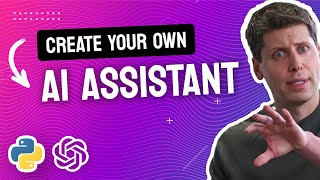
This video demonstrates how to create a custom AI assistant using OpenAI's Assistants API and access it via Python, showcasing tools like OpenAI's assistance API, Python, and OpenAI SDK.
Full Transcript
the assistance API is a new service from open AI that makes it really easy for you to build your own custom AI agent the AI assistant will look something like this it'll have access to all the latest GPD models a code interpreter and any additional instructions or knowledge you upload to it in this video we're going to build a custom AI assistant like the one you just saw it'll help us answer questions using global economic data which will provide to it in a PDS you'll be able to reason about our questions use Python to run calculations and call external functions or apis you'll be able to create all of this really easily right here on the openai website and once created you'll be able to use this assistant via an API endpoint as well that means you'll be able to call it directly from your python or JavaScript code and then use that to build your own custom application around it let's get started to create an assistant you need need to have an openai account so make sure you have that first before you begin then head on over to platform. open.com assistant click on this create button over here a tab will open up where you can fill in the name and the instruction or the prompt for your assistant so go ahead and fill those out in this tutorial I'm going to build an assistant that helps us answer questions by using economic data and cost of living data of different cities around the world next you'll be able to choose the llm model that you want to use for this assistant these are priced at paysu go rates so pick the one that works for you here I'm just going to pick gp4 and once you have all of that done you can click save and now we can try out our assistant by clicking this test button over here you should now see an interface like this and you can just type in any question or message for your assistant and then click run so here I've asked my assistant what is the most liveable city in the world in 2023 and the assistant wasn't able to give us a useful answer that's because we haven't provided the data or the knowledge for it to use um to answer our questions yet so let's see how we can fix that if you want your assistant to be more useful than just using chat GPT then you probably want to add some custom data or custom knowledge to it this is going to be some special knowledge that is really useful for your application but something that chat GPT won't normally have access to by default it could be a text file a PDF file or even a CSV table for this app I've downloaded the 2023 Global livability index report from The Economist to use as my custom knowledge Source it's got a bunch of data from cities all around the world um and data about their infrastructure uh their health care culture environment and things like that and I want my assistant to be able to answer questions using data from this report if you're following along and you want to download the same report for your app then you'll find a link to it in the video description otherwise feel free to use any of your own data to add this to the assistant go to your tools section here and then turn on this um information retrieval feature and click save and then click here to add that file and once your file is uploaded click save again now let's clear the page and test our assistant again to see if it's able to retrieve our data now this time the response is much more useful it discovers that the most livable city in the world according to this report is Vienna and if you look here you also see that there's like a little numbered annotation um and if you Mouse over that you can get a snippet of where it retrieved that piece of data from so as you can see this assistant is working really well with our data it's giving us all the right information from this report and is doing it through a humanfriendly interface but what if I needed my assistant to fetch additional information or call other functions or apis for example let's say I wanted to ask it a question like this if I had a function or an API available to help me calculate this I can integrated with my assistant using custom functions custom functions are external functions that you want your assistant to be able to call you can Define them as a Json schema in terms of what the input to that function is whenever your open AI assistant wants to use it it'll return you a Json object conforming to that schema you're then supposed to use that as input to the function yourself so for example say we want a function to get the cost of living in a city you could add a function em like this you specify the name of the function the description of what the function does and then all the available parameters that you want open a to fill out for you uh when you wanted to call this function let's pop back to our assistant window and add that over here so in this tools tab uh click to add a function and here you'll have a couple of uh examples that you can browse but I'm just going to paste the function code that I showed you earlier so we'll add that and then we'll click save with that done let's try it out here I've asked it what is the top city that speaks English as a national language and it's told me that this is Melbourne in 2023 and then I followed up by asking what is the cost of living there uh and now it's using my cost of living function and it's provided the input as a payload here um and it did this by looking at the function schema now for testing purposes you're supposed to run this function yourself you could just put a sample response or you could take the function and calculate yourself and then put the response into this text field and just click submit and once you provide it with the response um the assistant will continue running as normal using that information in a production app you'll probably just want to write some code uh to call this custom function with this Json input yourself I don't think that open AI is able to do this for you automatically just yet but assuming that you can get this result successfully somehow you're in business you've now created a custom function interface that your open AI assistant knows how to use now there's one more tool available to us that I want to show you and this is the code interpreter so go back to your tools section and you can turn it on um right here this will now give our AI assistant the ability to run calculations and even plot graphs by writing and running its own python code so now that I've enabled this let's ask it to plot some of this data as a graph now it might take a while but you should see a graph like this when it's done and it's generated this graph from the data in our PDF right here so it's pulled that out and then plotted it as this heat map you can also click open this code interpreter tab to see the code that it's actually written uh to produce this graph so this is really useful if you have data that you just want to be able to talk to Via this chat interface and have it visualize um different pieces of the data or different relationships of the data for you as you see once it's produced the graph it will just show up directly in the chat window after you've built and tested your assistant in the open a playground you might want to take it one step further and use it via an API endpoint that way you'll be able to use it as part of your own custom application or even build your own UI or SAS product around it if you're serious about using this then I recommend you go to the documentation page yourself and read more about how to use the assistance API in detail it's got all the instructions you need here and a bunch of useful examples otherwise if you just want to see how to quickly use it then let me show you really quickly you're first going to need an open AI account and you're also going to need to have your API key set in your environment variable so if you haven't done that yet make sure you sign up and get that API key first go back to the assistant that you want to use and copy your assistant ID which you should find right here under the name of the assistant then we'll pop over to our code editor and create a new python file and we're going to store this assistant ID we're going to need that later when we want to call the assistant also make sure that you have the latest version of the Python openai SDK you can run this command to upgrade it if you're not sure currently I'm using version 1.3.7 in your python file import the SDK and create a new client if your open AI key is already configured in your environment variable you'll be able to pick that up right away otherwise you can pass it into the Constructor as well before you can interact with an assistant you need to create a thread this is the code you can use to create a new thread it's going to start with this single message from the user every thread is unique and asynchronous you can think of them like opening up a new chat window with your assistant once you have this thread you can submit it to your assistant to actually run it this is like clicking the Run button that we saw earlier on the website as a result you get this run object which has an ID it doesn't contain the results of the run though the run is asynchronous so you have to wait for it until it's finished to wait for it we can do that using a loop there's probably a better way to do do this but this is pretty easy to understand so let's start with this for now we're just going to keep checking the status of the run every second until it is completed once you know that the run is completed you can then use this code to list all of the messages currently in the thread that's going to give you a list of messages in the reverse order so the message at index zero is actually the last message that was added to the thread um in this case this is going to be the response from the AI that we care about so let's print it out so now I'm in my code editor um with all of the code that we just walked through earlier let's go ahead and run that and you can see here it's created this run this unique run ID and now we're pulling the run for its progress and when the run's completed we can get this response uh from our AI so here's the response accessible to us via this API I hope this serves as a good starting point to you um once you have this result you can do anything you want with it you can put it into a fast API server or maybe use it as part of a loua function it's really up to you now if you want to go a step further and learn how to build your own custom UI using python then I also recommend you check out this streamlit video tutorial next it gives you a really easy way to build interactive apps with python perfect for something like a chatbot and you'll also be able to deploy it and share it really easily otherwise I hope you enjoyed this video see you next time
Original Description
Learn how to build your own AI assistant using OpenAI's Assistants API and how to access it via Python.
👉 Links
🔗 Code: https://github.com/pixegami/openai-assistants-api-demo
🔗 Documentation: https://platform.openai.com/docs/assistants/overview
🔗 OpenAI Assistants: https://platform.openai.com/assistants
🔗 Data (PDF): https://www.eiu.com/n/campaigns/global-liveability-index-2023/
📚 Chapters
00:00 OpenAI Assistants API
00:58 Create an OpenAI Assistant
02:07 Adding Custom Data
04:03 Function Calling
05:58 Code Interpreter
06:57 Using an API Endpoint
10:03 Wrapping Up
#pixegami #ai
Watch on YouTube ↗
(saves to browser)
Sign in to unlock AI tutor explanation · ⚡30
Playlist
Uploads from pixegami · pixegami · 60 of 60
← Previous
Next →
1
 2
2
 3
3
 4
4
 5
5
 6
6
 7
7
 8
8
 9
9
 10
10
 11
11
 12
12
 13
13
 14
14
 15
15
 16
16
 17
17
 18
18
 19
19
 20
20
 21
21
 22
22
 23
23
 24
24
 25
25
 26
26
 27
27
 28
28
 29
29
 30
30
 31
31
 32
32
 33
33
 34
34
 35
35
 36
36
 37
37
 38
38
 39
39
 40
40
 41
41
 42
42
 43
43
 44
44
 45
45
 46
46
 47
47
 48
48
 49
49
 50
50
 51
51
 52
52
 53
53
 54
54
 55
55
 56
56
 57
57
 58
58
 59
59
 ▶
▶
How to Build an AWS Lambda Function in Python in Just 7 Minutes!
pixegami
AWS CDK Tutorial: Deploy a Python Lambda Function using AWS
pixegami
I used GPT-3 to Write Poetry • Is AI the Future of Creative Writing?
pixegami
Create NFT Generative Art with Python! (Full Tutorial)
pixegami
Build an AI-driven SaaS Application: FULLSTACK Tutorial with Python, React, and AWS
pixegami
NextJS and TailwindCSS: How to Build a Portfolio Site from Scratch
pixegami
Python Web Scraping Tutorial • Step by Step Beginner's Guide
pixegami
Build Wordle in Python • Word Game Python Project for Beginners
pixegami
How to create 1000+ unique NFT-style images (like Cryptopunk) | Python Tutorial
pixegami
Top 10 Python Modules 2022
pixegami
How to Send SMS Text Messages with Python & Twilio - Quick and Simple!
pixegami
How To Write Unit Tests in Python • Pytest Tutorial
pixegami
How to Style Your React Landing Page with Tailwind CSS
pixegami
FastAPI Python Tutorial - Learn How to Build a REST API
pixegami
How to Deploy FastAPI on AWS EC2: Quick and Easy Steps!
pixegami
PyScript • How to run Python in a browser
pixegami
My Custom Ubuntu Linux Terminal with Themes and Plug-ins 💻
pixegami
Deploy FastAPI on AWS Lambda ⚡ Serverless hosting!
pixegami
NextJS Firebase Auth Tutorial • How to Authenticate Users for Your App
pixegami
AWS Lambda Python functions with a database (DynamoDB)
pixegami
How To Build a CRUD (TO-DO) App on AWS using FastAPI and Python
pixegami
How to Make a Discord Bot with Python
pixegami
How To Use GitHub Copilot (with Python Examples)
pixegami
PyTest • REST API Integration Testing with Python
pixegami
Python Beginner Project: Build a Caesar Cipher Encryption App
pixegami
Decorators in Python: How to Write Your Own Custom Decorators
pixegami
NextJS 13 Tutorial: Create a Static Blog from Markdown Files
pixegami
Exploring ChatGPT for Coding and Business ✨ 8 Real Examples!
pixegami
How I Would Learn Python (if I had to start over) • A Roadmap for 2023
pixegami
Build an AI Pokemon Generator with Python and Midjourney
pixegami
Why You Should Learn Python in 2023 (as your first programming language)
pixegami
ChatGPI API in Python ✨ How to Build a Custom AI Chat App
pixegami
Learn Python • #1 Installation and Setup • Get Started With Python!
pixegami
Learn Python • #2 Variables and Data Types • Python's Building Blocks
pixegami
Learn Python • #3 Operators • Add, Subtract and More...
pixegami
Learn Python • #4 Conditions • If / Else Statements
pixegami
Learn Python • #5 Lists • Storing Collections of Data
pixegami
Learn Python • #6 Loops • How to Repeat Code Execution
pixegami
Learn Python • #7 Dictionaries • The Most Useful Data Structure?
pixegami
Learn Python • #8 Tuples and Sets • More Ways To Store Data!
pixegami
Learn Python • #9 Functions • Python's Most Important Concept?
pixegami
Learn Python • #10 User Input • 4 Ways To Get Input From Your User
pixegami
Learn Python • #11 Classes • Create and Use Classes in Python
pixegami
Learn Python • #12 Final Project • Build an Expense Tracking App!
pixegami
Stripe & Firebase Tutorial • Add Payments To Your NextJS App
pixegami
How To Use GitHub Actions • Automate Your AWS Deployments
pixegami
How to Run a Python Docker Image on AWS Lambda
pixegami
My MacOS Terminal Setup for HIGH Productivity
pixegami
Host a Python Discord Bot on AWS Lambda (Free and Easy)
pixegami
Python FastAPI Tutorial: Build a REST API in 15 Minutes
pixegami
Pydantic Tutorial • Solving Python's Biggest Problem
pixegami
How to Get Started with AWS • Crash Course
pixegami
Python Requests Tutorial: HTTP Requests and Web Scraping
pixegami
Amazon Bedrock Tutorial: Generative AI on AWS
pixegami
How to Publish a Python Package to PyPI (pip)
pixegami
Langchain: The BEST Library For Building AI Apps In Python?
pixegami
RAG + Langchain Python Project: Easy AI/Chat For Your Docs
pixegami
Python Dataclasses: Here's 7 Ways It Will Improve Your Code
pixegami
Build a Custom AI RPG Game with OpenAI GPTs
pixegami
Create a Custom AI Assistant + API in 10 Mins
pixegami
More on: Prompt Craft
View skill →







Related Reads
📰
📰
📰
📰
Prompt Engineering Without the Guru Stuff
Medium · ChatGPT
Entrepreneurs don’t need more hours. They need better prompts.
Medium · ChatGPT
Why Most People Get Bad AI Answers: Prompt Engineering Explained
Medium · ChatGPT
How Prompt Engineering is Changing the Way We Search for Information!
Medium · ChatGPT
Chapters (7)
OpenAI Assistants API
0:58
Create an OpenAI Assistant
2:07
Adding Custom Data
4:03
Function Calling
5:58
Code Interpreter
6:57
Using an API Endpoint
10:03
Wrapping Up
🎓
Tutor Explanation

 DeepCamp AI