Scratch 3.0 Bouncing Ball with Stretch, Speed and Acceleration (Full Lesson)
Skills:
Visual / Block Coding90%
Key Takeaways
Creates a bouncing ball animation with Scratch 3.0 using stretch, speed, and acceleration
Full Transcript
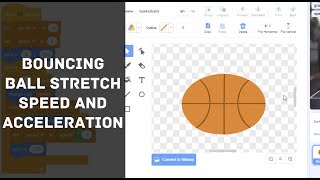
and what is squash and stretch usually used for it is used for signaling when there is movement about being compressed and also being elongated okay so for example this space here of Pluto his face is really elongated you can feel it his face is almost going forward right whereas the one just behind him this one here is a little bit more compressed okay and it looks like he is going back right so you can really see the movement just by squashing and stretching someone's face and over over just behind me this one over here this picture of Pluto he is even more compressed and it makes it look like he is staying still okay not just the way that he is sitting but also the way he's born you can see that he is much more compressed whereas the the drawings where he is more stretched out you can see here it looks like he's got movement so the easiest way for us to practice squash and stretch is to animate a bouncing ball okay to animate a bouncing ball it sounds really easy but I can tell you it is very very hard for a new animator to do a bouncing ball we are going to do it with help of coding okay so make sure we start up scratch I'm gonna start it up right now and then I'm going to share the screen with you okay so start up scratch you and then you know go we got a load up scratch so this is where we start off with and then I want you to save your file as bouncing ball okay so go file save to your computer so this is scratch okay so you haven't used it for a long time thank you then thanks for your message so what we do is we save it we go file we go save to your computer and then we call it bouncing ball okay so I'm just going to name your file in here you you you can call it bouncing all no I said okay bouncing ball all right so now first thing we want to do is we want to get rid of our cat okay so if I'm going too quickly I want you to raise your hand to tell me I'm going too quickly okay but I'm sure everybody has been with us for a while is should be okay with this two steps first of all we delete the cat by pressing the garbage bin on the top right hand side delete the cap and then I want you to add a basketball okay so we go choose a sprite over here then I want you to choose the basketball enemy you so we look for basketball so you can search for basket bas see bas ket and then we find basketball you click on basketball here we have a basketball the middle of the stage you then I want you to change the background so after you've added the basketball I want you to change the background so though it looks like a place where the basketball would make sense okay so you can make it very simple or you can choose any kind of place where our basketball could be there we go choose a backdrop yep Miranda no suggestion for the backdrop sure it's cold um click basketball - ok no jeans basketball one oh yeah basketball - or basketball one day both look great I really like it that's I'm gonna get basketball - but if you like you can choose basketball one or two that's it could suggest it's really really good so here's my basketball all right now what I want you to do is I want you to position the basketball in a very particular spot okay I want you to change its x-coordinate to zero and then its y-coordinate to 100 now you see after you've selected the basketball you choose the x-coordinate you make it zero and then y-coordinate you make it 100 you Lucas you have a question how'd you delete them X how do you delete the X what do you mean so you just put your cursor over here and then you type in zero so you if it's has a number in there you press backspace until you clear the number and then you'd make it replace it with Europe okay there Lucas okay so you make sure you type in the x value is zero and the y value is a hundred okay expounding zero Y values our hundred just to make sure that it stays there we're going to give it a very simple command on our code now so three things that we have we have our basketball in the middle we have our bathroom which is a basketball court or any other kind of background you like and then we change our position of our basketball to be 0 100 0 for X 100 for y now I want you to give it a very simple command we're going to give it an event for when we press the flag and then we're going to make sure that the basketball starts in this position when we press the go flag so we go events when flag clicked and hang in motion go to X Y x equals x 0 and Y is 100 even the background is called basketball too if you want to use that same back now basketball too you so your backdrop is a basketball too if you want to use this one or if you um if you want you can use any other background you like Michael you have a question make sure you unmute your microphone Michael I'm a bit behind why are you behind what you up to um I I'm getting my background getting your background that's okay just try just do a big background and then try to keep up okay okay okay no where is Michael we're only at the start so just try your best to keep up and we haven't done anything tricky yet all we have done is we've added basketball and at the background and we have this very simple command when the flag is clicked we go to x and y x is 0 Y is 100 you no I'm gonna ask a question and if you know the answer I want you to put your hand up so if I if I drop something if I held a basketball up really really high and then I dropped it how fast does it fall does it fall as had a same speed all the way down or does it speed up or does it slow down so raise your hand if you think you know if I drop a basketball if I held on the basketball and then I dropped it is it going to speed up or slow down or is it gonna stay the same speed when it's falling down in stay the same is it gonna say stay the same speed so if I drop the basketball it's going to stay the same speed as it's falling down oh you could speed up or I could speed up that is a interesting thought because this is quite a challenging question Bowen what do you think so stay the same well in actual fact when you drop something it doesn't stay the same speed when it's falling down when you drop something it actually gets faster and faster and faster as it falls down does that make sense if I if I drop something if I just let go of a basketball and then and then it stayed the same speed as it's falling down then it will look like it's floating as it's going down but it doesn't float what it does is it starts off very slowly then as it falls down it's going to get faster and faster until it wax on to the ground okay and that's very very important because the difference between staying the same speed and speeding up is going to make all the difference when it comes to making a realistic bouncing ball animation so let me show you I'll show you the difference okay watch this we go when we click on the flag now let's try to make our basketball fall down okay so we're going to control and then we'll do it forever Lee in this forever loop I want you to make it so that our basketball is falling down okay so what is the code what do you think should be inside my forever loop what do you think is inside my Fretilin yet I wanted basketball to be falling down Bowen you need to go in motion and do ten steps but instead of forwards you have to do it down that is a good that is excellent fantastic excellent Bowen said Bowen has talked himself into the correct answer which is great so you just get change Y by say minus five or something like that right change Y by say minus five so as you put that here then let's see what happens okay I want you two to do this and then press the flag and then see if it looks like it looks like a realistic falling animation does that look real I'll try it again right again right there's something wrong about the animation okay why don't why what does it look like does someone want to tell me what's wrong with it Yolanda your microphone is majored yonder so I'm just two problems one is it's falling for your floor too is that it's going really really slow going really really slow because when that's excellent there Yolanda so the problem is that when something is falling it doesn't stay the same speed because if it stays the same speed it looks wrong it doesn't look like it's actually falling when something is falling it actually speeds up it actually goes it starts off really slow and then it speeds up as it goes closer and closer to the ground and then it goes wet and hits the ground right and then the second thing that Yolanda is right about is that we're also falling through the floor okay so so there's two problems here but we're going to improve both of them how how to make it a more improved animation so watch this so this part here where it says change Y by minus 5 this is a problem because we can't just give it a constant speed to fall down we need to add something called acceleration or gravity who's heard of the word gravity does anyone heard of the word gravity before and who wants to explain to me what is gravity this is a this isn't not easy gravity is something that that is very hard to understand yes how about gravity is something that pulls us to your ground yeah pulls us to the ground excellent so gravity is some the there's a keyword in gravity which is that it is also that is making us accelerate to the ground right it is not a constant speed pulling us to the ground because otherwise everything will be floating to the ground but it doesn't it's making us accelerate so that is something very very special so in order to make that effect we need to add a few new things okay first of all we need to add a new variable so go into variables and then I want you to make a new variable make your variable and I want you to call it gravity okay the new variable name is called gravity spelled GRA V ity gravity and what's gravity going to do gravity is going to tell us not just the speed at which something is falling but the speed at which it is accelerating and that's really important okay the speed of acceleration so where you need to call it gravity Lucas you have a question I tried to go in scrunch nobody takes me ages did you accidentally close it what do you mean is taking you angels was my last could do it it took me a long time so it looks like that you're back there now Yolanda okay I found out something yeah there's that the higher the higher negative number it put the change right by in but the phosphate guys yeah yeah but the thing is that it's not speeding up no matter how high you make it it just moves down really really quickly but it doesn't speed up right if I can make it start off really fast but that's not realistic neither because when you drop a basketball it's not going to start off like going zooming into the ground it starts up really slowly and then falls into the ground and accelerates so that's what we're going to do okay that's right when you change the Y value and it will make it fall faster but that's not what we're trying to do right because we start off at zero and then make it accelerate into the ground so here we can set gravity and then we go okay then what I want you to do is we want to set gravity to minus four okay in order to do that we go into variables and then we go set gravity to minus four this means that every time we calculate gravity we wanted to decrease our Y value the Y values speed by minus four that makes sense so we're going to make it so that's when we click on the flag we set gravity to minus four said gravity 2-4 and now we need to change our speed as well right because we can't have our speed be really really slow or really really fast because if you imagine if I dropped my if I was holding a basketball and then and then I just suddenly let my hands go and drop it does it just go in the zoom really really quickly it doesn't right for a split second when I let go off the basketball it might just stay in the air for a split second and then it slowly falls down and then it accelerates as it goes further and further down so that's what we're trying to simulate okay we're trying to simulate when we drop the ball we're not making it fly down we're making it so that it let our hands go and then it's been good staying there for a second and then fall down quickly so that is how how we're going to do it and to simulate that we need another variable so first we set the gravity variable to -4 and then I want you to make another variable called speed because this is going to be the speed of our ball because it changes right it's not a constant speed when it falls down it's going to slowly get faster and faster so that's why we need another variable we can make a variable and then we call it speed so we got a gravity variable and then we got a speed variable this is very important otherwise it's not going to to make it a really realistic way of falling them to the ground so we got speed variable all right and then what is the speed of my basketball where I'm holding it and then I suddenly let go what is the speed do you think is when when I'm holding the basketball and then the split-second that I let go what do you think is the speed of your basketball yonder I got a mute button on your honor minion mm-hmm so if you if you if you're holding the basketball the instant you let go what is the speed of that basketball um the instant you let you what do you think is the speed of the basketball like medium but mostly quick I guess well it's actually it's actually just zero it hasn't it wouldn't have moved straight away right as soon as you let go of the basketball the speed is actually very very close to zero and that is going to be what we're going to try and set our speed to as soon as we click on the flag okay but that's a great guess there Yolanda so first thing we do is set gravity to minus 4 then we set the speed of our basketball to zero okay set the speed to zero does that make sense all right I'll give you guys another minute to make sure you've copied this code down exactly as it is I'm gonna raise your hand if you are still working on it and you still need time we've got a couple of people with their hands up so we'll just wait another minute to make sure that everybody has got all these things done make sure that you have your x and y value 0 and 100 and then make sure that we have our forever loop down here okay all right now now is going to be another little bit of of trickery okay we want to make it so that instead of falling down by minus five all the time changing the the y value by minus five all the time we want to change it by our speed okay so we just drag speed from our variables into here so we're changing our speed our y by our speed problem is that we we have our speed set to zero so now in our forever loop what we need to do is we need to have an increase of our speed okay so we go into control and then I want you to give it a wait time of 0.1 seconds okay so you wait where it says one second we change it to 0.1 seconds and then we're gonna put that inside alphabet forever loop but just before the change why so we click on the flag it's going to happen we set out gravity and then we set the speed to zero that means for a split second the ball is going to be hovering in the air but then straight afterwards 0.1 seconds afterwards we're going to start to change its y íd speed you yes the boys moving down the bull isn't moving right yeah yeah yeah so we haven't changed the balls speed yet because the speed is still at zero but now that I've got you on on the UM on the channel maybe you can tell me what I have to do now what do you think I have to do to make speed increase I have no idea that's okay well all I have to do is we got a few people who might have an idea held on for a second Ian have a guest what do we need to do to make our speed increase change speed by one ah that is excellent great gas but not exactly not exactly what I'm looking for is a very very close range B by one but instead of one what do we put in there in we already created it feed very close we change speed by gravity okay so because gravity when making gravity - or right so every 0.1 seconds we move the ball down slightly but then we change the speed by gravity and take make it faster and faster and faster okay so now if I press the flag you're going to see the ball is going to accelerate down instead of just floating down and it's going to look more realistic so let's try so yeah you see how the ball is moving down so that it is speeding up like that so it starts off still but then it starts to fall down quite quickly see that all right but now it's a basketball right it's a basketball so we need to make it bounce and we also need to make make sure it doesn't fall off the screen okay so we are going to keep improving it did you have something to say okay did you have something to say on [Music] everything on everything well no we can't because we need to start our speed at zero but then change it afterwards and we have to start now all at zero and 100 and then we change it afterwards and we also have to set how gravity to minus four at the start but then not in the loop okay okay that is a good point there it's worth examining these all the time so now we have a ball that is accelerating down but we still needed to bounce and it's still not going to be very realistic if it just accelerates down and goes plunk outside the screen so now we are going to add some more magic okay they're going to make it so that if it touches the edge of the screen then we're going to change its direction going to change its direction so we who wants to do the first part how do I tell it if it's touching the screen it's touching the screen what should I what's the block there yep I think there's a bloke incensing mouse pointer boy who says excellent that's the one fantastical and excellent work so first of all we go into control and then we go to an if then block we put it inside here okay inside the UM the the forever after change speed by gravity and then we go into sensing where we if it's touching mouse pointer but we change mouse pointer to an edge so it's touching the edge of the screen okay change it to touching the screen and then what do we need to do we need to reverse our speed so our speed is going down faster and faster doing negative negative negative at a certain speed like by the time he goes down to the bottom you look on the screen over here we're at speed minus 116 okay or on your on your screen it might look something different might have a different reading but what is one mathematical thing I can do to the speed to make it from negative to positive because I needed to go bounce to go upwards again so I needed to change from a negative number to a positive number what can I do using maths to change it from a negative number to a positive number straight away iam set speed to speed to a positive number that is that is excellent that is good start so we go stay on stay on the line because I want to I want to keep talking to you so we go variables we go set speed to but instead of a positive number what we need to do is we need to change speed to a positive value of speed so in order to do that what can we do to the number on speed right now to change it to a positive number if speed is like negative 100 what do I do to it to change positive - just backspace the one that says - backspace it well that is that is an excellent point but the correct answer is we multiply it by negative one okay so we multiply any number by negative one to change it from positive number to a negative number or a negative number to a positive number does that make sense so any number at all if we want to change it from a positive number to a negative number we multiply it by minus one if we might want to make it go from a negative number to a positive number we've also multiplied by minus one okay so that is how to change something from negative to positive so we're going to operators and then we go to something times something simple here the time symbol in the operators is this asterisk is star symbol okay over here so we put it over here and then we go set speed to speed so I go back into variables go speed multiplied by negative one okay but not only that there's one more thing we need to do other thing is we also need to make sure that I want you to drag your your ball up so that it doesn't look like it's fallen off the screen I just want it to be slightly above the screen like that okay slightly above the screen and then take a note of the y-value so we want its y-value to be equal to this one at this value as well so when it hits the bottom of the screen we don't want you to start bouncing from off the screen we wanted to stay on the screen and then start bouncing so why for me is minus 155 it might be the same for you or it might be something different but if you want you can just use the same value so so all you have to do is I go into motion and then I go set Y to - 155 all right this is starting to look really complicated but with walkthroughs step by step so let's see what this is going to do okay so now you can press the flag and then you tell me what's what's working and what's not working what's the problem with okay let's try it again excellent so this is looking like it is working but something is wrong someone raised their hand as you can tell me what do you think is wrong with our ball at the moment yes that's right Kevin so the problem is that our ball is bouncing perfectly which means that it's it's not realistic because a real ball what happens is that the first bounce it bounce is higher but then the second bounce it bounce is lower and then bounce is lower and lower and lower this is called decay okay so we need to make sure that our ball bounces less each time until it stops and to do that all we have to do is we change our the reversing value you know the one where we changed it from positive to negative by I mean from negative to positive by multiplying by minus one well now what we have to do is change that and we're going to make it so that it we add some decay to it so I'll show you what I mean we change it the speed here to multiply by instead of minus one we go much multiplied by minus 0.5 that means that it loses half the energy in each bounce and it loses half the energy in each bounce and that is going to make it look a lot more realistic this is what your kite should look like and then when we press the flag you'll see that the ball bounces and then it decays like a real ball okay but then it keeps on keeps on bouncing keeps on making these little bounces which is not really realistic and that's just because scratch has a little bit of an error when it comes to this these little small numbers so what we need to do now is we need to make it so that when the ball is at a certain range of speeds it's going to just stop moving okay and this is how we do it so we go like this we go control if then block if then luck and then what do I want to do is straight after it's the set why actually let me think about this now after the set why we can go if it is this is a very special current called absolute value okay so just follow follow me but what we're trying to do is if the speed is low enough then what we do is we just we just stop the bouncing so we go if if then over here and then we go if something is less then if something is less than 10 you and then where we go is we go speed we go variables because speed if speed is less than 10 all right so we still have 15 minutes but this is where we're going to add our special sauce to make it really really good okay make your your bounce really really look really realistic and that is to add the squashing of the basketball when it's bouncing okay like a real basketball when you bounce it you don't see it's squash or stretch but in an animation it's different in an animation we want to emphasize the movement so in order to do that I'll give you guys one more minute and then I'll show you how to do the do the squashing and stretching for the basketball all right so this is how you do it so you got your basketball selected and then I want you to go in your costumes and then I want you to duplicate this costume on the left hand side so you go right click and then you go duplicate so now you have two basketball costumes on your new costume this is what you need to do now follow me carefully I want you to put a box all around the basketball and then at the top of the basketball is a little little square little dot when you hover over it it's got this up and down arrow we just have to click on it and then squeeze it down slightly just a little bit okay squeeze it down slightly but don't go yet because we also need to stretch the two sides so the left side we stretch out a little bit and the right side we also stretch out a little okay and one night when I put it low a little like a oval the lines actually come out that's because you need to highlight everything you need to highlight everything before you do it so you just delete it so watch me you got elite it like this delete it and then we duplicate it again and then what you need to do is you need to highlight everything and squeeze it down and then stretch the sides [Music] that Itanium let me know if you if you're still struggling okay your lender oh yeah that's because it's it's stretched so but that's okay because that's that's the effect we're going for because normally the basketball is going to be round but when it's hitting the ground it's going to be slightly flattened like that okay okay all right so now you have two costumes one costume is what a basketball is normally where it's normal normal shape and then the second one is when it's slightly flattened and slightly fatter okay then we go back into our code so when we when we start the code when we hit the flag we need to make sure that we're using the normal shape so we're going to looks and then we go switch costume to basketball okay which costume - basketball and then who wants to raise their hand and tell me when do we change its costume to the other costume to the flat basketball a bunch of people raising their hand sir you're in sir see dude you just drag a block that says turn Fletcher or do you just drag a block that says which costume to and then you just basketball - yeah most people true which one that's right so it's which costume - basketball - but where a bounce do we put it shinsen I'm doing do we do we put it um after that if touching edge to me fantastic I really like that so we will put it if it's touching the edge that means we've whacked on to the side and we're about to change our direction so we go switch costume to basketball to over here and then what I want you to do is go wait 4.1 seconds okay so we go to control and then wait for 0.1 seconds and that is going to give you the effect of a really cool animation so if you watch it now you started your point oh whoops ah there is now something that we need to also change as well so someone suggest what else that we need to do to change it maybe your Lander hey there of how it just like stays flat that's right so how would we fix it maybe we can endorse which question did basketball well maybe pull like before or after it yeah very good so excellent work Yolanda so we go switch costume back to basketball after the waiting point one seconds okay so now if you press the flag it's going to go down it's gone bounce just like a real basketball okay that okay chun-sam so I just like side like so you know I actually added like the sounds there are basketball bounce sound oh cool I put it before before the switch to costume yeah and as it doesn't work really cool yeah yeah station son excellent so just like concern you can also add your basketball sound when it is hitting the ground inside sound so you play sound basketball bounce and then you can drag it to - when we switch the costume excellent way Lando did you want to say something oh I just thought looks very cool it looks cool right yeah yeah so something as simple as a bouncing ball is actually very hard to do so we are doing it this kind of animation in a way called programmatic animation which means that we are using computers to help us do this animation but over the last hundreds of years people trying to do a bouncing ball find it really really challenging and there's a real test of an animator to be able to do a convincing bouncing ball so even though a real basketball when you bounce it it doesn't look exactly like this is like we don't see a real basketball squash like that but we do the animation like this because we need to add squash and stretch to emphasize the animation so hopefully you can see that when you do add this question stretch your animation looks much richer and it looks more professional and you can show your friends and family what you do
Original Description
Enjoy this preview of the Scratch Coding course from Creator Academy.
Squash and stretch as well as speed and acceleration are essential concepts for advanced animation techniques. Animating a bouncing ball realistically is not so easy!
For more in-depth science, building and coding on this subject, visit www.creatoracademy.com.au
For code and other materials, visit www.patreon.com/creatoracademy
Watch on YouTube ↗
(saves to browser)
Sign in to unlock AI tutor explanation · ⚡30
Playlist
Uploads from Creator Academy Australia · Creator Academy Australia · 42 of 60
1
 2
2
 3
3
 4
4
 5
5
 6
6
 7
7
 8
8
 9
9
 10
10
 11
11
 12
12
 13
13
 14
14
 15
15
 16
16
 17
17
 18
18
 19
19
 20
20
 21
21
 22
22
 23
23
 24
24
 25
25
 26
26
 27
27
 28
28
 29
29
 30
30
 31
31
 32
32
 33
33
 34
34
 35
35
 36
36
 37
37
 38
38
 39
39
 40
40
 41
41
 ▶
▶
 43
43
 44
44
 45
45
 46
46
 47
47
 48
48
 49
49
 50
50
 51
51
 52
52
 53
53
 54
54
 55
55
 56
56
 57
57
 58
58
 59
59
 60
60

LEGO Wedo 2.0 Kangaroo and Joey Demonstration
Creator Academy Australia
LEGO Wedo 2.0 Koala Demonstration
Creator Academy Australia
LEGO WeDo 2.0 Eagle vs Rabbit Demonstration
Creator Academy Australia
Animatronic Australia: The Kangaroo
Creator Academy Australia
How Semiconductors Work: 3D Animation
Creator Academy Australia
LEGO Wedo 2.0 Koala
Creator Academy Australia
First impressions and unboxing First Lego League: Into Orbit 2018
Creator Academy Australia
FLL Into Orbit Team Ranking Gears talks about Artificial Gravity
Creator Academy Australia
FLL Into Orbit team Ev3lution discusses isolation in space
Creator Academy Australia
PI3-BOT (Pie Bot) Prototype
Creator Academy Australia
Dynamic display stand for LEGO Bugatti Chiron (preview)
Creator Academy Australia
Creative Kids TV announcement featuring Creator Academy
Creator Academy Australia
LEGO WeDo 2.0 Guided Lesson: Milo
Creator Academy Australia
LEGO SPIKE PRIME: Turtle Prime Demonstration
Creator Academy Australia
LEGO SPIKE PRIME "Wheelchair Prime"
Creator Academy Australia
10 Reasons why EV3 is SUPERIOR to SPIKE Prime
Creator Academy Australia
Your first launch after installing Python: Python for Kids Webinar Highlight
Creator Academy Australia
What is "Sharpening the Saw": Python for Kids Webinar Highlight
Creator Academy Australia
Why We Use Comments: Python for Kids Webinar Highlight
Creator Academy Australia
Build a Scratch Dinosaur Park (Full Lesson)
Creator Academy Australia
Scratch 3.0: Cat and Mouse Game Stream (Krunal)
Creator Academy Australia
Python Tutorial: Make a Toilet Paper Calculator (Full Lesson)
Creator Academy Australia
Scratch 3.0 Tutorial: Making a chatbot that plays 'heads or tails' (Full Lesson)
Creator Academy Australia
Getting Started with MicroPython on SPIKE PRIME (old)
Creator Academy Australia
Easter Egg Game Tutorial in Scratch (Full Lesson)
Creator Academy Australia
Accessing Weather API with Python (Highlights)
Creator Academy Australia
Accessing Translate API with Python (Highlights)
Creator Academy Australia
Scissors, Paper, Rock with Scratch 3.0 (Highlights)
Creator Academy Australia
Making a really scary game with Scratch 3.0 (Highlights)
Creator Academy Australia
Making a Lemmings game with Scratch 3.0 (Highlights)
Creator Academy Australia
Space Navigation Game in Scratch (Highlights)
Creator Academy Australia
Scratch Supercat Game (Full Lesson)
Creator Academy Australia
Introduction to Robots with LEGO Wedo 2.0 (Full Lesson)
Creator Academy Australia
Getting Started With LEGO Spike Prime (Full Lesson)
Creator Academy Australia
Scratch Walk Cycle Animation Tutorial (Full Lesson)
Creator Academy Australia
Building a Scissor Lift with LEGO Simple Machines (Highlights)
Creator Academy Australia
EV3 datalogging RPM challenge (highlights)
Creator Academy Australia
Learning about buses with LEGO (Full Lesson)
Creator Academy Australia
Make "Flappy Bird" in Scratch 3.0 (Highlights)
Creator Academy Australia
"Memory Arrows" game with Scratch 3.0 Lists (Highlights)
Creator Academy Australia
Learning about Gear Ratios with LEGO Simple Machines (Highlights)
Creator Academy Australia
Scratch 3.0 Bouncing Ball with Stretch, Speed and Acceleration (Full Lesson)
Creator Academy Australia
LEGO SPIKE Prime Order Tracking Robot (Highlights)
Creator Academy Australia
Scratch 3.0 Race Guesser (Full Lesson)
Creator Academy Australia
How Banks Work - a quick explanation for kids
Creator Academy Australia
SPIKE Prime Safe + importance of passwords (Highlights)
Creator Academy Australia
Combination Safe Coding Guide with LEGO SPIKE Prime
Creator Academy Australia
LEGO SPIKE Prime Parcel Scanning Robot
Creator Academy Australia
Building "Addy" the Addition Chatbot
Creator Academy Australia
SPIKE 2.x PID Balancer with Scratch for SPIKE Prime / 51515: Gyro Girl
Creator Academy Australia
What is Procedural Programming
Creator Academy Australia
Zombie game in SCRATCH (plus horrifying zombie facts!)
Creator Academy Australia
Swarming Bugs Scratch Game
Creator Academy Australia
LEGO Mindstorms/SPIKE Prime Scanner and Printer
Creator Academy Australia
Fishing Game with SCRATCH (For Fathers Day!)
Creator Academy Australia
Measuring Paper Plane Speed with SPIKE Prime Line Graphs
Creator Academy Australia
Comparing Mindstorms Robot Inventor and SPIKE Prime
Creator Academy Australia
Code a 'Knock Knock Joke' game in Scratch 3.0
Creator Academy Australia
Creator Academy Australia Live Stream
Creator Academy Australia
Discovering LEGO Mindstorms/SPIKE Gyro Pitch Deadzone
Creator Academy Australia
More on: Visual / Block Coding
View skill →




Related Reads
📰
📰
📰
📰
The Best AI Websites Nobody Talks About
Medium · ChatGPT
Ghost Notes and Coffee Cups: 12 Observations on Trying to Automate My Music Workflow
Dev.to AI
I Replaced Manual Meeting Notes with AI — Here's the Workflow That Actually Saved Me Hours Every Week
Dev.to AI
The Ultimate Guide to AI-Powered Resume Building: Create Your Perfect Resume in Minutes
Dev.to AI
🎓
Tutor Explanation

 DeepCamp AI