Clio Manage: Full Walkthrough & Deep Dive 2025
Skills:
Legal Operations & Technology80%
Key Takeaways
Provides a full walkthrough and deep dive of Clio Manage's features for law firms
Full Transcript
The timeless question for all the law firm owners, which case management system is best for my practice? Clio Manage stands out as a leader in the market, but is it really that good? Over the last few years, my team and I have worked on countless number of implementations of Clio Manage, its competitors in the legal tech space, and also custom-built solutions. And what I've realized is that there isn't really a great resource that talks in depth about all the features that Clio Manage provides. So, we have decided to create it. In this full in-depth review, we'll talk about all of the key features that Clio Manage provides. From matter and contact management to billing and payments to automation and AI. For each one of these features, we'll rank them out of 10 in comparison to other solutions on the market, and we'll also talk about all the pros and cons of using Clio Manage to cover all of these needs from an unbiased perspective. We are not sponsored by Clio. My objective by the end of this video would be to make sure that you have a solid understanding of what features Clio Manage provides and what would be its limitations to make sure that you can make the best decision for your firm. Let's get going. Hey there, my name is Martin Kravchenko and I'm the Chief Technology Officer at Swans, where we help law firm owners and managers make the best use of their technical systems to grow and scale their practice. Now, before we dive deep the features that Clio Manage has to offer, let's first understand what Clio Manage is and what it is not. Now, Clio Manage is an all-in-one solution for case management, billing, document management, and client communications. Clio, the parent company that develops Clio Manage, is one of the most established providers in the legal tech industry. Having been founded in 2008 and just recently in 2024 having raised $900 million in funding at $3 billion valuation. So, you can rest assured they're not going anywhere anytime anytime soon. Now, what we need to understand is Clio Manage is only a part of the solution that Clio, as a company, provides. Clio Manage is their primary product and that's really where we'll be focusing our review today. We won't be talking about the other products. That is their primary service offering, the case management system, but in addition, they also have a few other things. They have Clio Grow, which is the client intake and CRM solution, Clio Draft for document automation, and Clio Payments, a new product for legal accounting. Again, for the purpose of this review, we'll only be focusing on the capabilities of the case management system, Clio Manage. Let's now get going and we'll start with first category of matter and contact management. Now, as we go through this review, I will cover all of these different tabs over here. For now, let's start with matters. Here you will see a list of all the matters or cases that you have open in your firm. You can sort and filter them out by their status, which are three available in Clio Manage, open, pending, or closed. You can then see all the basic details about them such as the matter number, which by the way can be fully customized. You can have auto numbers in there. You can include different details such as, you know, the date that the matter was opened, the last name, the first name of the client, so you can really customize it to whatever to whatever you want. We have the client that is linked to and then any staff members that matter has been assigned to, specifically the responsible attorney, originating attorney, and responsible staff, which could be a case manager or paralegal assigned to the case. Now, these first two, responsible and attorney and originating attorney, will actually be able to run billing and revenue reports on to see how much revenue, you know, they're bringing and contributing to the firm. We then obviously see the practice area, open date, and there are a few other fields that we can actually add in here, including all of the default fields and in addition any of the custom fields that we have defined. A great thing about Clio is that we can define as as many custom fields as as we would need of a different data type, so, you know, dates, text, checkboxes, etc. So, for example, in this case, I have added three custom fields to this view, judicial district, the NPS or net promoter score, a metric often used for to measure customer satisfaction, and the latest comment from the latest NPS survey, right? And so, we can very easily see them over here. We'll dive deeper into how we can manage custom fields a bit later. Lastly, we also have quite advanced filtering functionality on again all of the default fields such as responsible attorney, originating attorney, responsible staff, but then we can also do so on any of the custom fields. A lot of times, this is the level of filtering and kind of viewing customization that not a lot of case management systems provide, so that's very very good to see here. The only big downside that I see here is that you can't really save any of these views. So, if you know, if you if you come back to it, you want to to update something, you'll need to do it manually and then go back to to that original view that you were working with. Talking about practice areas, all of these are fully customizable. You can rename them as as you see fit in the settings. And also with advanced and complete editions of the software, you get access to this stages feature, which is extremely useful. It allows you for each one of the practice areas to define stages that the case will go through. All right, so for example, for personal injury, the stages could be treatment, document collection, demand drafting, negotiations. You can easily add new stages. You can reorder them and delete them as you see fit. As the stages as as the cases progress through the stages, you'll also be able to see how many days they have spent in a particular stage. And then also in here in filters, sort by the for example, last moved, newest to oldest, or oldest to newest, right? So, you'll be able to see for example, very easily the the cases that have recently entered a particular stage or the ones that have been there the longest and are potentially stuck in that particular stage. Let's now talk about how do we actually get the matters information inside of the system. If you're using a CRM like Clio Grow or Lawmatics, then you may have an integration with Clio and be able to pass any information that you have about the matter inside of your CRM system once that matter is converted into your Clio Manage. Alternatively, you can also create this matters manually by clicking this create new or new matter button over here. First of all, we can apply a matter template. I'll talk about them in just a second. Then we can select to which contact, client contact, will this matter be related to. If needed, we can create a new contact over here inputting some basic details such as, you know, name, email, phone number, and the address. We can add a matter description. The responsible attorney, originating attorney, and responsible staff, right? So, it's our staff members and then all of those other fields that we have mentioned previously. In addition, you have the support for statutes of limitations. So, if you input a date over here, it will also automatically then appear on on the calendar. And you can also on firm calendar to make sure that you don't miss it. And we can also add statute of limitation date reminders to either yourself by email or via the app pop-up or to any other to any other firm staff staff members. And you can customize it to exactly when when you need that statute of limitations reminder. We can then very granularly define who has access to the matter, either everyone in the organization or a specific user or group of users. Who will be notified about the matter? If you want to block anybody specifically from accessing the matter, and also then any related contacts on the matter. So, that could for example would be a spouse, a second client, or even they could have an opposing party then added as a contact over here and specify that in the relationship. We can also decide if the that particular contact should also then be billed and and receive notifications about new invoices generated on the matter. After that, we go to the custom fields section. And so, here you can define in the settings some fields that will be automatically added as default to all of the matters that that you create, right? So, that for example could be, you know, the court case number, digital district, assigned judge, etc. You can also then add any other custom fields in here or define a custom field set, which will be a predefined collection of custom fields that can be added to a matter. So, for example, I have defined a custom fields set here for bankruptcy, which as you can see contains all of these different fields, which are then very easily added or removed from a particular matter. Any of these custom fields you can now also define as required, meaning that you'll need to fill them out before being able to create the matter. Then we go into billing and we can define a matter as billable or non-billable and then also the billing method, right? In case of hourly, the it will be essentially based on whatever activities and expenses we add to the matter, right? Those will be defined on the obviously, you know, default hourly rates of staff members that actually log in their time against the matter. Then we can have a flat rate, right? We can define who would be the fee recipient, if there's a a specific category, right, assigned to the matter and what would be the amount. All of this is customizable. Or if it's a contingency, again, who would be the fee recipient and what would be its rate. In addition, we can also define trust balances and specify, for example, notify certain users when the trust funds on the matter fall below a particular threshold. In addition to that, we can define uh for the hourly matters custom billing rates for specific users or groups, a specific matter budget, and also the ability to split invoices for the matter in between two different client. Then, if you have the personal injury add-on, you can decide how you want to the order of settlement deductions. Then, you can define any default task lists that will be added to the matter when it is created. We'll talk about them a bit later when we talk about task management. Then, what document folders you want created uh once the once the matter has been opened. And finally, how you want to assign the the billing, right, or the essential revenue that you get from this case in between the originating attorney or the responsible and the responsible attorney, right? You can use either from settings, which will be default, or you can also customize it for each one of the matters that you open. Let's now cover matter templates, a feature that can save you a lot of time when opening up matters. Now, this matters templates can be used either at the time of the creation of the case or once the case has been created. So, for example, you know, coming from another software, Cleo Grow Law Office, you can then also apply a matter template already once a matter exists in the system and modify essentially its its its fields and in its setup after it has been created. So, these can be found in this matter templates tab over here. We have already one defined for personal injury. Essentially, what matter templates allow you to do is to predefine some of the fields that we've just talked about, right? Such as for example, the responsible attorneys, the practice area, the permissions, the matter status, any custom fields or custom field set that you want to be added to the matter, billing preferences, document folders, and then also pre-assign any task list that you have, right? You can also define the matter template as a default matter template, meaning it will be applied by default to all new matters. Let's now open up one of the matters that we already have over here, this Adams matter, and see how does the matter screen look like, what can we do over here. Now, first of all, at the top, we will have a review of all the financial information, so any work that we have in progress, unbilled, or in draft, any outstanding balances, and trust fund. Also, we can then very quickly from here add time and any expenses to the matter. Now, if you're using uh Cleo Manage Payments, which we'll cover in in the billing section, you can also then manage the payment methods associated to this matter over here. Then, scrolling down, on the left we have the basic matter details, you know, including the responsible attorney, responsible staff member, matter stage, matter practice area, etc. We can also see here the mail drop address, where you'll be able to then add emails and log emails against against this matters. There are multiple ways of going about it, which we'll cover later on. We see a list of all of our custom fields in here. Once you reach a certain number of custom fields in here, you'll it will it will then prompt you to another view, to another screen, where you'll be able to see more clearly all the custom fields that you have defined and added to this particular added added to this particular matter, right? And they'll be broken down by those custom field sets, which I have described earlier, right? So, for example, in here we have a bankruptcy matter, so we have all of these uh custom fields added added to it in here. Let's go back to the dashboard. On the right uh hand side, we have some recommendations from Cleo Duo, the new AI product of Cleo that we'll as well cover later. We have the information about the main client, our client, right, and their their contact details, and then also any related parties, right, on the case. So, for example, in this case we have a spouse, and we also have a son. Finally, down below we have the timeline of all the things that happen on the matter, which you can also then filter by specific user or specific type of action. In at the top, we have a few tabs, right? So, we have the custom fields tab, which you're seeing uh just before that. We have all the activities that have been logged against uh the matter, so that can be either time entries or expenses. We'll go through each one of these as well um in more detail as throughout the review. We have the calendar events associated to this to this matter, uh any communications, you know, be that email communications, text messages, phone logs, internal messages, or client portal notifications, any notes that our staff members have logged against the matter, the documents, right, split into the different folders, tasks, which are outstanding or completed, you know, who they're assigned to, any bills, right, you can see also see their status, any transactions assigned to this to this matter, uh in terms of financial transactions, and then finally, we have Cleo for co-counsel, if you that's a great feature of Cleo where you can give access to your off-counsel attorneys just on particular matters instead of giving them access to your full case management system. And then finally, for personal injury, we also have the management of medical records, damages, and settlements. To dive a bit deeper into this personal injury add-on, uh which will be extremely useful for many firms practicing in that in that area, uh in the damages section, you'll be able to log any more of the damages, be that you know, special, general, or other type, and their uh financial amount in the damages tab. In the medical records tab, you'll be able to add any of the medical providers associated to this case with their contact details, the status of the treatment, the status of collection of medical records, and status of collection of medical bills. All of these as well, you'll be able to add as many records and bills as you need, and define all of the details associated with them, such as the bill amount, how much was paid, if there's any adjustment, and what are the balances owed. For medical records as well, you'll be able to obviously, you know, to collect those files and upload them to the matter. And finally, in the settlement tab, you'll be able to track all of your recovery amounts, any of the legal fees deducted from that, net client compensation, and also very easily from here generate a PDF of of a settlement statement, which will then easily be able to send for e-signature directly as well through Cleo Manage. So, really streamlining all of all of that process that you need for your PI case. And finally, on this tab over here, you'll be able to duplicate the matter, share it with co-counsel, or edit any of the matter details. Now, my only frustration with the way that editing of uh matters works in in Cleo Manage is the fact that, for example, if you want to update any of the custom fields, right, you actually need to scroll down to here and make any any updates here, and then, you know, click save matter, or you need to go into this uh custom fields screen and then click edit custom fields, which ultimately then also brings you back to this whole configuration of the case. It would be really nice if we could make it to have some inline editing, right? So, we can very easily update, for example, the value of the judicial district directly from the screen. That, however, is uh is not really available. You always need to go to this edit edit matter screen to be able to do that. Let's now shift to the contacts tab and see what we can do over here. In here, we'll be able to store all the information details about the people and the companies that our firm communicates with. So, you can uh have those two main categories uh divided into in here. And then, for each one of these contacts, you can also define any tags that you want. It's fully customizable. So, for example, you can create tags for any vendors that you communicate with, courts, etc., right? You will then you will be easily be able to to filter by those tags as well in this filters section in here. Now, when you add a new contact, you can define decide if you want to add them as as a person or as a company. In case that you decide to add them as a company, what you'll be able to do is essentially have, you know, that high-level company linked to employees, so actual people working for that company in here, just like this. For each one of the contacts, be that a company or you know, an actual person, you'll be able to define their phone, email, website, and address. Also, define any custom fields just as we did with matters, any of the custom fields that you want to save there. You'll be able to see any matters that they're associated with, either as a third party or as um as the main client. And also, see any um communications logs for that particular contact, notes, documents, bills, transactions, and as well Cleo for co-counsel. Just so that you have a better understanding of how the linking of contacts to matters works, let's go back to our Adams matter for bankruptcy in here. If we click on our Trevor Adams as a main client over here, we'll see the matter that uh they're associated with uh under the client's matters. In turn, if we go to, for example, the spouse, we'll see that they're associated uh on the matter not as a client, but as as you can see, related contact, the spouse, on this Adams matter. Now, with Cleo Manage, you also get a global search, meaning that here at the top, you can search for any term uh that you would want. For example, let's see Adams, across all of the case management system, and we'll pull up all matters, contacts, calendar events, notes, tasks, activities, documents, contact document names, or communication logs that mention that particular keyword. So, this can be very useful, for example, to conflict checks, right? When you're opening up a new matter, just make sure that you're checking all of your case management system, so not just, you know, the contact names, but also all of these other objects in here to make sure you don't have any conflicts of interest before proceeding uh a particular matter. So, now that you've seen the capabilities of matter and contact management, let's talk about a few cons. Uh some of them I've briefly already mentioned um throughout throughout this section um of things you want to have in mind. So, there is no inline editing of fields as I've explained. Uh there is um no native system as well in Clio Manage of uh tracking where the matters came from apart from the responsible originating attorney. So, for example, if you want to be tracking the different sources where your matters are coming from, let's say, you know, your in particular uh ad campaign that you're running on Google or let's say word of mouth or, you know, a billboard campaign that you did, uh you won't really be able to do it in a very streamlined Yeah, way you can you can use a custom fields for that. Uh but there's really no inbuilt reporting functionality to support that, right? You can really run only reports based on originating attorneys and responsible attorneys. Still, again, Clio Manage doesn't really position itself as a full CRM system, right? It's more of a case management system. You can then use Clio Grow or Lawmatics or another solution uh to be able to do that. Now, even so, the stages and the Kanban view that I've shown previously is I feel like it's a somewhat basic feature, it is reserved only on advanced and complete plans, something to have in mind. Also, for custom fields, what I found is what it what would really be nice is, for example, for things such as bankruptcy, in case that you want to have a repeating section. So, imagine that we are collecting all of the information about the asset inventory of of this case, right? There isn't really an option to define a repeating section where we'll be able to, you know, add asset one, asset two, asset three, and each one of them would have its own set of fields, right? So, just for example, name, amount, etc. There isn't really an option for that. The only way that you can go about it is either have, let's say, like a long a long text field just like this, asset inventory and valuations where, you know, you'll enter them one by one. Or um have custom fields for ordered for each one of the assets, like, so for example, asset one name, asset two name, asset three name, asset four name. Obviously, in that case, you are somewhat constricted in terms of how many assets you can you can add at the matter. So, something to have in mind. There is also no automated or like systematized way of running conflict checks. As I showed you previously, you can use this global search to do that, but there isn't really like a separate section, right, or a separate feature that would allow you to track whether a conflict check has been performed or automated in any way. And finally, the intake, let's say, capabilities of of Clio Manage are somewhat are somewhat limited, right? So, you can't really send out any intake forms to clients. If you would want to be doing that, then you need to use a more specialized CRM solution such as, again, Clio Grow or or Lawmatics. Uh all in all, so I feel like the matter and contact management is very solid in Clio Manage. I'll give it a nine out of 10 for this. Let's now move to the next section, which is calendar management. Uh I have changed the tab to this calendar tab over here in Clio Manage. Clio provides us with quite a flexible way of structuring our calendars as a firm. So, first of all, everybody in the firm, each user will have their own calendar. There'll also by default be a firm calendar, a task calendar, and also statute of limitations calendar. As I mentioned previously, once you know, if you define statute of limitations in matter, those dates will appear over here. Now, in addition to that, you can create as many additional calendars as you want and share them with um whoever, you know, needs access to them, be that a particular group or uh a particular user in any of your firm. Now, you can then also change the color of all of these calendars and be able to, you know, see them as long as you have access to them all in one view. We then obviously, you know, get the basic features of, you know, being able to see it as an agenda, as a day, week view, work week, or a month view in here. Now, when we're creating any events, we have a few options, right? So, we can obviously, you know, add the title, make sure to specify if it's an all-day event or or not. We can also define repeating events either daily, weekly, monthly, or yearly, and if they need to end on a particular date or not. We can also specify the location. In case that you are using Zoom for your appointments, you can also connect Zoom to your Clio Manage account and then also automatically create that video conferencing link in here. You can then associate that event to a particular matter. Once you do so, we'll then also see as suggested entities any of the contacts associated to that matter. We can set up reminders either for yourself or another team member about about these events. We can choose to which calendar we want to to save this. And then also, we can customize the different event types, right? So, we can configure this as you wish. So, for example, I have defined a few event types in here, court hearing, deadline, and internal. They will then appear in different colors on on our firm calendar or sorry, on our calendar, so we can more easily distinguish them in here. And finally, a description. We can then invite other firm users to the events or as well any of the contacts that we have in in the system. In case that contact has an email associated, um phone number associated to to them, then we'll also be able to send out automatic email invites or and or text text invites to invite them to this particular. Now, Clio Manage also supports multiple quite an extensive court rule functionality. Uh we can opt up to 10 different jurisdictions over here, and the list is quite extensive. Another great thing is that you can also have two-way syncing functionality with both Google Calendar and Outlook. So, any user in your firm can connect their calendar to Clio Manage and be able to see their events inside of their Google or Microsoft accounts. If they create any events, update any events in either of those accounts, they'll be synced with each other. If you are the primary subscriber, then you'll also be able to pull in the firm's general calendars as well into into your account. And finally, on each particular matter or contact in the calendar tab, we'll be able to see all of the events associated to that particular record and also easily, you know, sort them and filter them out as needed or add a new event directly from here, which will be then automatically linked to that particular matter. All in all, Clio Manage provides good calendar management capabilities both if we use it inside of the software and also if you want to to sync it to our Google or Outlook calendar. The only two main things that I would be missing are no default reminders set on events, so you can't really define, for example, specific event type and then they have that always come with its own set of reminders, so you need to define those manually when you're creating the event inside of the software. Uh and second is there isn't really no appointment scheduling solution that is available with Clio Grow, right? So, that your clients or other third parties can book directly inside of your calendar, uh but that is not something a feature that the Clio Manage provides itself. For that, again, you'll need to use something like Clio Grow, Lawmatics, or maybe third-party solution like Calendly. So, the rating for calendar management is nine out of 10. Let's now move on to task management. So, let me get into the tasks tab in Clio. By default, you'll be able to see here a list of all the outstanding tasks assigned to yourself. You'll be able to see the due date, the name and description, the matter they are linked to, if some of them are marked as high or low priority, you'll also be able to see that over here, and finally, their status, task type, and time estimates. Now, if you would want to see all of your firm task assigned to any staff member, then you can very easily clear the filters in here and then see the full list. Again, as with matters, the filtering capabilities are quite advanced in here, and also you can specify which columns you want to be looking at specifically. From here, in any one of the tasks, you can mark them as complete, add its task details, which we'll go through in just a second, or then also add time against against that particular task. A great thing is, in the filters, you can very easily select only the tasks without associated time entries, so that can be useful for, for example, end of week review where you go through the tasks and make sure that obviously, any important time entries have been added for each one of those main tasks that you perform on on a case. As with all these other tabs, you can also view the task associated to a particular matter directly on that matter screen, right? When you create a new task on the matter, you'll have a few options. You can obviously enter the name, priority, high, normal, or low, description, who you want to assign that to, that can be either a user in the organization or one of the contacts. You can also mark this task as private, which will restrict its visibility and then on only show it to you. Then you can add any of those task types. Think about it just like task categories uh similar to event types that we have talked about. Task status, which can be four four levels, pending, in progress, in review, or complete. Time estimates, the matter that it is linked to, and then the due date. And the due date can either be a specific date or actually a relative due date based on an existing task. So, for example, in here, I have defined uh this review draft with client task, and as you can see, it is a relative due date, 5 days after draft petition, the previous task before it. You can also define here business days, weeks, months, or years, and also after or before. And the cool thing is as if the due date of this task, for example, gets delayed, so right now, for example, it's the 8th of of April. Let's say we now move it to the 15th, then the due date of that other task will also get automatically updated making sure that, you know, if you have essentially task dependencies one on each other, then all of them get get moved into the future instead of you having to manually go and and update them yourself manually. And then also for each one of the task you can define reminders, right? Either to yourself, again, or any other staff members in the firm. Let's now talk about an amazing feature of task lists. So, task lists are essentially collections of tasks. Let's just think about it as task templates, predefined that you can then either apply manually to a matter or actually do it through an automation with automated workflows, which we'll talk about in a later section of this video. So, in a task list, for example, in the have this personal injury document collection. In here, we have multiple tasks that we have created over here. For each one of them, we can define all the basic things. We can then also decide if we want it assigned to the list assignee or a specific or a specific user in or or, you know, team member in in our organization if somebody always completes the specific task. And then for the due dates, similarly, right, we can define when will be the due date of that particular task based on another task in the sequence or the trigger date, i.e., when the task list has been assigned. Now, after we have defined all of this, we can then very easily assign the task list to a particular matter. We can either do it from here or we can also do it directly from from the matter view. So, let's navigate to our Adams matter over here. tasks and assign task list say personal injury. We can choose which assignee we want the task to be assigned to, right? All the tasks that have the list assignee option will get assigned to the person. Any of the ones that have been really hardcoded to a particular staff member will be assigned that staff member. We can notify all the task assignees and then we can choose the trigger date. By the by by by default, it's today, but you can also modify it. Again, we can also do that through automated workflows, which we'll talk about later in the video, which based on the stage change, right? So, as as cases move through a stage change in that Kanban board that I showed you previously, we'll be able to automatically assign this task list to one of the staff members assigned to the matter, right? So, either the responsible attorney or originating attorney or the responsible staff, for example, case managers, will be able to automatically assign task list to them as the case progresses through the pipeline. All in all, I would say that the task management capabilities of Clio Manage are quite strong in between the task lists, the different priorities that you can assign, the different assignees that you can choose. Now, there are a few things that still could be improved. For example, there isn't really a subtasks feature, right? So, if you have if you'd want to define, for example, let's say draft petition, if there are certain subtasks under it that you would want your firm members to complete, you only have really two options. One is creating them a separate task, which then can potentially clog up the task list, or have it as part of the description, but that point you obviously, you know, cannot very easily mark them off and and and track their completion. So, no subtask feature. There's also no kind of resource advanced resource allocation or workload splitting capabilities. So, for example, if you would want to assign a particular task to instead of a particular user, but to instead to a group, right? Let's say you have a group of paralegals, just assign it to the whole group in a in the whole, that is not really possible. You need to assign a task to a particular staff member. And finally, there's also no Gantt or kind of timeline views on cases. Obviously, you know, that's more for like project management already a software territory. So, if you want that more advanced task management, I would I would look into using an an additional software like Asana or monday.com to manage more that more advanced workload, but again, would be amazing if that could be integrated directly inside of inside of a case management system. All in all, for not having the subtasks and and and not having that more advanced resource allocation eight out of 10 for task management for Clio Manage. Let's now transition to the time and expense tracking. So, these are called activities inside of Clio Manage in activities tab. And just as before, you have quite an extensive capabilities for for filtering. You can quite easily filter in here all the time entries, for example, that haven't yet been billed or or that are in draft stage, so that's again useful for end and of week review to make sure that you have actually billed for all the time and expenses that you have logged against against your matters. And this same view can be accessed on a particular matter over here. Now, how do we add new time entries or expenses? We can either create a time entry manually over here, specify the duration, specify an activity category, which again works similar way to like event types and task types, with difference being that here you can actually specify custom categories that will have a certain hourly rate associated with them or in case that you have billing on flat fees, a certain flat fee associated with that, right? We can then specify the dates, the user, the description, the rate, and whether that, you know, non-billable billable or non-billable time entry. We can also Another way of creating time entry is actually using the timer. So, this timer is available in in all windows inside of Clio Manage. We can just kick things off in here, you know, start our work. Once ready, click the pause. Right, it will it will prompt us to add some additional details. So, for example, we can select the matter, activity category, put the description, select the rate, right? If we want to, we can even, you know, continue continue running it at any point in time. Click save entry and we also have the ability to have multiple timers available at the same time, right? So, for example, we are working on this accident zone in this boot. Let's imagine now we start work on another matter, let's say, you know, this Davis divorce, right? That's that's something else. Let's say that's you know, email, kick off the timer, save entry. There we go. Now, we have both of these timers available and we can easily then shift in between the two. Once we are ready to actually finalize that entry, we can click edit entry, right? Stop the timer and then actually save it save it to the matter. At any point in time as well, we can kickstart any previous time entries that hasn't yet been billed. So, for example, in here we have this email correspondence, right? We can easily restart the timer from here. It will pop it in in in in in our timer selection over here and we will add add to whatever time has already been logged against that matter. Now, in Clio Manage, you can associate the time entries not only to specific matter, but also to several other objects within it, right? So, for example, you can add time to communications, right? So, let's say you spend some time on an email, you can add a time and log the time against that specifical specific communication. You can also do so against a particular calendar event. You can so do so against a note. And also against documents, right? You can also record time here. And finally as well, you can also do so against against task. Just click record time over here. And and that will also then be linked to that task object. As for expenses, in a similar way we can add them to the case. Again, we can utilize one of the expense categories that we have defined, right? Which will have pre-built essentially the amount associated with it, number quantity of that expense. We can modify the rate over here, billable non-billable description, date from user, and finally also see if we want to apply tax or not. So, the only big downside that I see to time and expense management inside of Clio is that it doesn't automatically track the time for you. And so, some other software such for example, Smokeball or Legal Files, that as you are working through the matter, if you then click out of that matter, it actually prompts you to create a time time entry for the time that you spend let's say inside inside of that inside of that window. Clio Manage cannot cannot really do that, right? You'll need to be using either the timer feature in here, which does allow for multitasking, but again, it's not it's not really automatic, or, you know, adding adding those time entries manually in here. Now, the great thing again about Clio is that it integrates with a lot of different softwares and there are multiple solutions on the market such as Man Time, Wise Time, Ajax that would be able to essentially monitor all of your activities that you are doing, you know, working on documents, sending out emails, etc. in the background and then intelligently, let's say, quite easily then record those entries against a particular matter against a particular task inside of your Clio Manage account. So, for this reason, task time and expense tracking in Clio Manage gets a nine out of 10. Let's now talk about billing and payments, an area where Clio Manage really excels at and provides a full suite of billing and payment collection capabilities for your firm. So, as you're working on on your matter here in the dashboard, you'll see any work that you have in progress that is yet remains unbilled, any outstanding balances, and also matter trust funds. Now, you can very easily initiate any trust fund request over here, which also then supports an approval process by by a particular staff member in your firm. Or you can also quickly create a bill in here and add any of the unbilled items, you know, time entries and expenses in here. You can customize how the bill looks inside of inside of the settings and also you can customize what kind of reminders will be sent sent out for those bills. Now, there is also an ability, obviously, you know, to see inside of this billing section over here um all of the bills that you currently have in your firm. They are divided in several statuses, so draft, pending approval, unpaid, paid are all of them. In here, you can see uh obviously the status, when they're due, the client, the matters that they're shaded to, and and the balance. Now, as before, quite extensive filtering capabilities, and also customization of what columns you want to see. Now, you also then have uh any outstanding balances on on the matters, and you can also enable automatic reminders for any one of them on a predefined schedule and a predefined template, which you can you can customize in settings. Now, you can also then generate bills in in batches, right? So, you just click new bills over here. It will populate uh all of the clients and all of the matters that still have unbilled entries, and you can very easily generate all of them in here weekly or biweekly, whenever you're you're doing your billing. Now, click into one of these bills and see what details can we update. First of all, we can choose a bill theme. I will talk about that in just a second. We can customize the address and also any notes, so I just put the notes, invoice memos, and um and payment notes in here. We can then see the bill timeline. We can download it as PDF and all these other options in here. We can record the payments. We can edit the bill, and we can also void or apply uh trust to this bill or also, obviously, you know, send it over email and or text. As for payment collection, we can either do this manually or we can actually apply for online payments uh where we'll be able to process and use Clio Manage as a payment gateway, so that our clients will be able to pay us via credit cards, debit cards, or e-checks as well for for their bills. And we easily record a payment over here, right? Specify what was the payment source, to which account we want that deposited, and then also, you know, how much obviously was the payment. Let's now look into this account section over here. Here, you'll be able to define all of the accounts, trust accounts, operating accounts that you have in your firm, and as you go along, again, you'll be able to then add transactions to any any one of these uh any one of these accounts. And then log them against particular particular matters. What if you haven't done also enabled online payments, you'll specify you'll be able to specify one of these accounts as a payout account for any of those online payments coming in. Now, for online payments, you can collect uh them again over credit, debit cards, and e-checks. What you can also do uh is create a payment plan. So, if you, for example, have a client paying in multiple installments, you can quite easily do so over here, you know, choose the contact that you want that associated with, where those funds should be uh deposited, how much should be the the amount, what is the start date, what is the frequency, weekly, biweekly, monthly, or just once, and then up to how many payments, you know, that that's going to be. And then finally, choose whether it's paid by credit card or via an e-check. Now, what you can also essentially use this uh system for is uh subscription payments. It's not necessarily super streamlined, but what you could do, for example, if you have, you know, a subscription, let's say, of $500 that the client is paying to you, you specify $500 here and put quite a high number over here, let's say, 100,000 or whatever, uh essentially will be just a very long payment plan that they're going through, and you'll be automatically billing them for that amount every month, every week, biweekly, as as you see fit. Now, if you'd prefer to be logging um some of those payments manually or processing them through through some other means, then again, you can add a new transaction over here, and then as transactions added, you can then associate that transaction to a particular matter, right? So, for example, let's say this Adams matter over here, right? Once that is done, this will appear inside of the transactions tab inside of the matter, choose the operating account number two. There we go, right? So, we have running balance of 2,000. And then we can apply one of these payment against a particular bill, right? So, let's imagine that we have this unpaid bill over here. We can record a payment. And as a payment source, we can then use this operating account, which has the 2,000, and we can apply part of that or all of that against this particular invoice. So, as you can see, quite a lot of different options for for reconciliation, but the obviously the easiest way is just to collect them through online payments and and process them directly uh inside of Clio Manage. Now, let me also go to the billing settings just so that you have a full perspective of, you know, how you can customize um these features in here. I'll go I won't go into all of the details, but I'll just show, you know, the main the main ideas. So, you can customize the the cover page, you can customize the taxes, how you're doing your rounding, what are you doing about your, you know, different uh non-non-billable time. You can then define automated bill reminders. Either, you know, enable or disable them by default, how often those should be sent, and also what would be uh the template that is used in uh in the email. Uh you can customize as well the the email templates that go out in, you know, for for bill templates, for trust request, outstanding balances and reminders. Then, you can customize the bill themes. Quite a lot of customization that you can have here. You can have multiple themes available. You'll be able to change up, you know, the localization, add watermarks, add headers, uh specify how you want, you know, the the line items actually displayed, your firm information, right? How you want the table configured, footers, remittance slips, etc. So, as you can see, quite a lot of options for customizing how your bill looks. Then, we can create payment profiles and apply them to different contacts and matters, right? So, we can define, for example, grace periods, certain discounts if paid, you know, within X number of days, annual interest, right? Rate if if you'd want uh that for for any over-overdue payments. And then again, specify which particular contacts or matters you want that applied to. Then, we have our UTBMS uh codes in here. We can then specify if you want to split in between soft and hard costs for your expenses, that's that's a possibility. If you want to apply protected funds, and finally, how you want to allocate payments against bills, and then also attorney allocation in terms of originating attorney and responsible attorney uh split. Clio then also offers integrations with QuickBooks Online and and Xero, two most popular softwares, and also in addition, obviously, their own accounting product, which they have recently released, Clio Accounting, to make sure that, you know, you can you can still use utilize both your case management system and your accounting system and have that related to downsides that I see of billing and payments in Clio Manage are one, the initial learning curve that may be required in order to fully understand how the system works and properly utilize it, and and second would be the fact that the you can't really create or automate bill creation through through the API. You can only read data about bills, not actually write data to the system. Uh but I feel like those are quite quite minor points. So, overall, I would give Clio here a 10 out of 10. I think very solid job in terms of billing and payments. Let's now talk about document management. And um if we go to navigate to the documents tab inside of our matter, we'll be able to either see all of the uh files in a folder structure, or just the actual files inside of those folders, which is I feel like is quite useful. As before, we can customize how we want to sort them, you know, what columns we want to see, and also filter them out by specific categories. So, each folder or file that we create can be assigned a specific category, uh similar to, you know, event types and, you know, task types before that we have seen before, and then we can, you know, filter them out by these categories. In addition, we can also add comments to any files or or folders, and easily then track it all within uh all within this view. If you click into any one of the folders, we can obviously, you know, define more complex folder structures as we see fit. Uh but then we can also visualize and preview the most common file types directly in the software as well. So, if we click view over here, we can visualize PDFs, Word documents, etc., uh view all the details about them, and also very useful feature, we have version history, meaning that as your team members work on on on these files, if they're uploaded through through the web app or they uh actually use the desktop app, which I'll talk to about in just a second, we'll be able to see all the version history of this file, which is um which is very very very useful, and I feel like a lot of a lot of firms struggle struggle with that. Now, apart from that, we can do a few things in here. We can add time entries related to this document. We can edit its basic details, you know, the matter, contact, category, etc. We can send it out for e-signature directly from within Clio Manage, either to, you know, other uh staff members or to to to, for example, the client. It will pull it into specialized e-sign software that it has essentially built in, and then we'll be very easily define any signature fields that we want to place on those documents, any, you know, form fields, text boxes, etc. that we want filled, and customize exactly what we want uh what we want, you know, required, optional, etc. So, in-built e-sign capabilities, then we can share these documents with our contacts, either a for co-counsel, if, you know, are sharing it with a co-counsel, or uh to any any contact, you know, be the client or third party, via a secure link, via the email with a secure link. So, what does it mean that? They'll get an email with a link to download the document that will expire in, I believe, like 7 or 14 days, uh to make sure that, you know, you're not sending it as as as just directly attachments to the email address. Then, we can share it to our cloud portal, which we'll talk about in the later section, copy internal link, and then, obviously, move to download. In addition to that, we have a few AI capabilities here, such as a summary and document analysis. So, again, we'll touch upon that uh a bit a bit later on. Let's now talk as well about the desktop access or the desktop app of of of uh of Clio, Clio desktop app, or what's called also Clio Drive. Cuz actually, it works for both Mac and Windows. Uh works very similar to what you can expect from, I don't know, like Google Drive uh desktop app or OneDrive desktop app, essentially meaning that it will, you know, sync um all of the folders and then files that you have to your to your local machine. Obviously, not download all of the documents from the get-go. You can define exactly how much storage, let's say, you want that uh to occupy, but then, you'll directly inside of your finder or inside of your file explorer in Windows, uh you'll get a Clio Drive folder, which will then uh contain all the contacts, right? So, for example, this Adam Strebel over here, right? And we it will replicate all of the folder structure and all of the files that you see in the in the web app. Also very useful is that uh in each one of these folders, it contains a link to open the Clio Manage. So, if you just click it, it will actually open it up in the web interface. Right? So, just as before, for example, you know, court filings, we have that other, you know, PDF document that that we have seen before. And in case that we actually go and make some edits to it, it will upload it as a new version inside of our Clio Manage, right? So, let's, for example, add a text over here. Testing. Right? Let's make sure that we save the document. Clio Manage will then sync it to the web app. And so, if we now go into court filings, and then view our document over here, as you can see, a new version has been recently uploaded. There we go. Just like that, we can have a very seamless version control for all of our documents that we are working on. Apart from all of this, Clio Manage also has a document template, you know, document automation capability. So, if we click new over here, we can see create document from a template. We can define these templates inside of Word using what are called merge fields, right? So, we can pull information from the matter. That can include both, you know, default fields, such as, you know, matter client name, the responsible attorney name, but also any custom fields that we have defined on the matter. Now, this, obviously, you know, is a more basic use um of of of this feature, where you can just directly paste information. If you are more experienced in Word uh template creation, then you can add more advanced logic into here. Also, I must say, it's not as intuitive as using a more specialized solution. That's why, for example, Clio Draft, you know, Clio has Clio Draft, right? Uh but and and there are also other solutions in the market, such for example, Gavel, that allow you to build these document templates with with more ease and uh and add more advanced, you know, conditional logic to it, formatting, etc. Now, these uh document templates can be triggered manually from from here, right? So, we can then just select the document template. We again select if we want it as a PDF document, Word document, or both. Click create. It will take some time and, you know, populate it uh in in here. Uh or also, we can actually do it through an automation using the new automated workflows feature, which again, we'll cover a bit a bit later. Now, lastly as well, we can upload documents uh by scanning them on on the on the mobile app of Clio Manage, which again, we'll cover a bit later on. Now, last but not least, Clio also has integrations with a few other document storage solutions, such as, for example, uh Google Drive. You can enable it by going into settings and then document sources. And as you can see, we have integration with Box, Dropbox, Google Drive, Microsoft OneDrive, and NetDocuments. Now, how will it look like in the interface? Once the integration is enabled, you'll get this new tab in here, for example, you know, Google Drive, if you have enabled a Google Drive source. And if you click into it, you'll be able to upload, download any documents um that now live in your Google Drive folder, right? It will recreate the actually similar structure to what we have seen in the Clio Clio Drive um desktop app, right inside of your Google Drive account or OneDrive, whatever it is. In here, you can edit the document. You can also add time to it and, obviously, you know, do the basic operations. Now, keep in mind that if you are using this external source, you are missing out on a lot of the features that Clio internal document management provides, such as, for example, those e-signatures, sharing it to the client portal, sending it as a secure link. All of those features will not be available if you are using a third-party solution, such as Google Drive. Now, one last cool feature that Clio Manage is working on in terms of the document uh management department is actually Clio File, which allows you to e-file and e-serve uh documents inside of Clio Manage, directly inside of a matter view. Now, at this point in time, it's only available for Georgia and Texas uh states, so quite limited coverage there, but that is quite cool to see Clio integrating that directly inside of their system. So, all in all, quite extensive capabilities in job document management. Some things that I don't like is, as I mentioned, uh document plan templates are not as extensive as it could be. Ultimately, that's why again, Clio has its own product for that, Clio Clio Draft. There's also no native document comparison tool um if if you'll be looking for that. And also, there is more limited automation in terms of uh more complex folder structures, right? So, if we are looking at our matter templates in here, right? The we can only define folders in here for the top level, right? So, for the first level of the hierarchy. If we want, for example, inside of correspondence, also multiple subfolders for different categories, we won't really be able to achieve that without applying like any any external uh automation tools uh to be able to to help with that. All in all, Clio Manage gets a 9 out of 10 for its document management capability. Let's now look at communications and the client portal. So, if we head over to the communications tab on any matter, we'll have a few submenus. Logs for any form and email communications, text or SMS messages, internal messages with the team, and client portal. Let's go through these one by one. So, first of all, talking about email communications in email logs. We have three different ways that we can add them to the system by default. We can log them manually by going into new and then email log, specifying the subject in the body of the email, record any time associated with it, and then uploading any attachments to the to the documents tab. That is the most manual option. Then, we have can copy the matter mail drop address, which will look something like this, and then we can CC it or BCC it inside of our communications when we're sending out the email in Outlook or Gmail, right? That will automatically add that email and any of its attachments to the matter. Obviously, then, sometimes it's not the most user-friendly option, and then clients will will forget to include it in in their replies, right? So, probably, you'll still need to do some manual login. And that's where the third option that Clio has developed is um comes into play. So, they have extensions both for Gmail and Outlook, which will look something like this. You'll be able to open up any of your threads, look up a matter, right? And then log all any or or all of the emails in that thread against that matter, including any attachments. You'll also quite easily be able to include any time entries as well in in that menu. Uh still, so that's, you know, quite a lot of manual login potentially that that you may need to do. So, that's why there are some external solutions, such as, for example, Tempelo, uh which I have actually recorded a video about on my channel. Feel free feel free to to check it out in uh in the description down below, which automatically logs emails for you based on its AI algorithm. Just connects to your email inbox and automatically uploads all those email and associated time entries to your Clio Manage account. But again, that's a that's a third-party that's a third-party. Then, in terms of phone logs, you can again either add them manually in here, or you can uh you can integrate potentially with phone system, right? So, for example, RingCentral has an integration with Clio Manage, which will then automatically log or help you more easily log those phone calls against any of this matter. In addition to this, if you connect your Gmail or your Outlook to to Clio Manage, you'll also be able to send out templateized emails directly from the platform, right? So, I've gone into new, send email, and as you can see over here, we have this option for an email template, which we can define in the settings. It can prefill some of the information about about the matter. Now, it's not super extensive. Let me show you all the settings in here. If we add a template, uh the only auto fields field auto field fields that we have are uh some basic client details, first name, last name, name prefix, and then also matter name, originating attorney, responsible attorney, right? So, and then we can also make that template available account-wide for for all the users. So, not super extensive, but some basic template in can be done directly inside of uh Clio Manage as well in here. Now, as for the text messaging, it will look somewhat similar to what we can expect in the client portal, so I won't spend too much time on this. Essentially, what what will happen is just like you'll get a phone number assigned to your firm, and then, you know, clients can can message that that that phone number. If, you know, we have them saved as a contact, it will appear in our dashboard, and all the stuff, we'll be able to to communicate with them directly through the through the Clio Manage interface. Then, in internal messages, we have with the arrow config, threads, internal threads that we have about this case, we can open it up, and then different team members on on the case that we have added over here can send messages and will be notified if any new additions are um uh are submitted, right? Any new messages are sent through it. And finally, for the client portal, we can create a client portal and uh connect it with with the client, so they'll get an email invitation uh to to their email inbox, and they'll be able to to log in. They don't need a separate password for that. They just click that magic link inside of the email. Here's how this portal looks like from from the client side of things, right? So, we have a few sections in here. We have any messages that are coming through. They can also obviously, you know, message firm back and attach any documents. They can then see any documents that they sent or that were shared with them. They can see any uh invoices and and bills that um with the potential will already like if you have enabled all online payments on your Clio Manage account, then pay them directly in here. And finally, they can see any upcoming or or past events that they may have on on on this case. The great thing as well that um the clients can access it both via the web app without having to install any extra applications, but they can also install from the App Store the Clio for Clients app and uh and communicate through there, also get push notifications then on their phone about any new messages shared um by the firm. From the firm side from the firm side, the portal looks something like this. Again, we just have our messages and any shared resources and a log of all the, you know, incoming and and outgoing messages um over here. Um and we also then obviously have the Clio for Co-Counsel, which we already um mentioned before, which gives essentially a portal um similar kind of similar to the to the client portal, right? To your off off counsel attorneys without them having to get access to the to the Now, let's switch now to the communications tab in here. And here we'll have an overview then of all the communications in our firm, including any new messages that are coming from the client portal and any active client portals that we are participants in, any text messages, internal messages, and also logs um of firm-wide, which is again obviously, you know, you can uh can can filter based on a few conditions, uh and also sort sort out and and um and and visualize, right? Uh very easily then from here, we can jump um directly into that conversation without even having to to to um visit the case. Another great thing is in all of this as well, client portal and and other communications, we can add time entries very easily to them here to make sure that we are properly billing for all the work that um our staff members are doing. So, quite a good few features that we have seen there in terms of communications. Now, as to drawbacks, um there are quite a few things that I've noted down here. First of all, we do have that stages feature inside of our matters, right? That you know, the pipeline that it goes through. Now, some other external third-party provider, such for example, Case Status and and Clio Manage, actually allow you to to show the progression of the case to the clients and and keep them updated automatically as the case progresses through those stages, so they can see the progress of their case inside of the client portal. Clio Manage doesn't really have that functionality built in. The client portal is somewhat more basic. You can also cannot really automate any client portal messages through, be that, you know, directly in Clio or through the API. Um that even with external automation still, you won't be able to do that. Also, obviously, you know, you need to be manually logging those emails against the matters and unless you you employ a third-party solution like like Tim Belo. Yes, you can use the BCC email address, but again, a lot of times that solution doesn't really work very well. Also, there are no mass email campaigns. So, for example, I don't know if your office is closed for some reason and you need to notify all of your clients, you can't really do that inside of Clio Manage. You'll need to manually email each one of your clients. That's where, you know, a proper more CRM customer relationship management system would come in. And finally, there's also no, I mean, I guess that's that's a bit, you know, nitpicking, but there's no inbuilt a solution to gather feedback. So, for example, send out automated, you know, reviews, review requests, or collect NPS scores, customer satisfaction, inside of the client portal or through other means inside of Clio. So, that's that's probably the part that I would say is somewhat more lacking, so I would give it a 7 out of 10 in in this case. Moving now into reporting and analytics, there are two main places where fee those features related to that are found inside of Clio Manage. That is dashboard and this reports tab over here. Now, as for the dashboard, it provides you an overview of your financial metrics in terms of, for example, any draft bills, unpaid bills, overdue bills, and total quantities in those. And also in terms of your billable hours target as an individual contributor to the firm. In addition to that, also based on that, we have some financial metrics in terms of actual expected and target earnings and a progression of those. Now, this dashboard is more so geared towards obviously, you know, hourly billable firms that bill hourly, right? Not really great for flat fee or contingency firms. So, that is some part that is not necessarily that that great. We then also have the firm dashboard, which is kind of like some somewhat somewhat hidden. A lot of people that we have seen uh don't don't know that it exists, but it's actually very useful for all kinds of firms. So, here you can check uh and obviously, you know, this sample data, so it doesn't make much sense, but here we have metrics about the utilization rates, right? Meaning how much of the time that we actually spent working is being billed. Again, more so geared towards hourly, but then here, realization and collection rate. So, realization rate is how much of the time that is, you know, that we actually log against the system or flat fees that we log against the system is actually then billed. And then collection, how much of the time that is billed and uh and flat fees that are billed is then actually collected. So, these are useful metrics. You can use visualize them by hours, and dollar amounts, or or percentage terms. And obviously, you know, have some filtering in terms of the time uh the time range and also the users uh inside of your Finally, here you also have the firm feed, which just displays all of the activities happening uh inside of your firm that you can also then filter filter filter down. If we now move into the reports section over here, we'll be able to run quite a few different reports. I won't go into too much detail into which one of them, but we have, you know, any billing and revenue reports, uh client activity, trust management, matter reports, some personal injury reports if you have the personal injury add-on, online payments if you have the, you know, online payments enabled, uh productivity reports, task reports, and also then revenue and fee allocation reports. For each one of these, they will each will each will have its certain set of additional settings that you can configure. So, for example, for accounts receivable, we can specify by, you know, a specific responsible attorney, specific practice area, specific client or matter. We can see how we want to group the results, what should be the date range, and what should be the output format, like PDF, web, or CSV. We can then either generate this report from the get-go or actually save it as a preset. And actually schedule it out, right? So, it can run, for example, every day, every week, or every month. Then, when we want it to run, and when the schedules we should be effective from, right? So, this is how this report would look like if you would schedule it out, then obviously, you'll get notifications about that report being ready in inside of your email email inbox. And that's how one of them could could could look like. You can then manage all of your presets over here, both just normal presets and the ones that have actually been scheduled, and also see history of all the reports that you have run uh previously in here as well. Ultimately, I would say uh quite good reporting uh capabilities. Again, the dashboard is somewhat more geared towards firms that bill hourly. Uh there is also no ability to run custom reports and you say like add add custom columns, potentially join data that, for example, you know, Filevine has some more extensive actually data reporting and and fusion capabilities. So, I would give Clio here an 8 out of 10 in this in this Let's now move into one of my favorite areas, automation and AI. So, in terms of automation, Clio Manage really didn't have much up until very recently. Primary automation we could do is just document automation, but there is a new feature that recently came out called automated workflows, which I'm very excited about. At this point in time, it's still its scope is still somewhat rudimentary, uh but it does place a very good foundation for Clio now to work from and expand its functionality, which which I feel like is very exciting. So, at this point in time, we we can really do three things with automated workflows, and that's that's recording of April 2025. So, we can assign a task list uh when uh a matter in a particular practice area moves from one stage to another, we can automatically assign a task list and to either the originating and turning responsible attorney or or the responsible staff on on the matter. And because this functionality depends on on the on the matter stages, then again, that feature would be reserved only on advanced and complete editions of of Clio Manage. That's I feel like is is an extremely useful automation to have. Then, we can also generate documents with the same idea. When it moves from one stage to another in a particular practice area, generate a document template and generate a document using a document and and save it to the matter. And finally, um if you're using Clio Grow and and Clio Manage, um then you can also automatically apply a matter templates when a matter is converted from the Clio Grow, depending on the practice area, and if you want to also filter it out by a responsible attorney. You can then move We use the all the automation history in here, and and fix any errors that that they may be. So, I feel like already quite useful feature, but I'm also excited about all the potential that it has, because now they have actually placed this, back-end infrastructure for for this to work, and I feel like they'll be really expanding its functionality as as time as time goes on. Now, let's talk about Clio Duo, which is the Clio AI assistant. It can already do quite a few things. Now, the more basic things that it can do is, for example, it can suggest the priority matters that you should be working on, depending on several factors, you know, if there has been activity on it, if there is, for example, any deadlines, limitation dates, etc. Then, you have access to this kind of chatbot interface. Think about it as ChatGPT powered by all of your Clio data that lives directly in the in the interface. So, here it can do some basic things. So, you should like ask it, you know, to to write up an email. You can also ask it to catch up on a matter. It will specify like any latest activities on it. You can also use it to create time entries, expenses, and tasks and events from here. For example, you know, create time entry of 1 hour on case number X, right? These features I don't feel are extremely useful because you can very easily do it directly in the interface. I feel like that will be even even faster. What I'm more so excited about is a few other features. Now, the first feature that I want to to cover is the summarization of of documents. If we head over to our documents tab in in one of the matters, and we actually preview the file, we can then click into the summary tab, and we'll after a short while generate a summary of that particular document, which would be quite useful to select to give a quick review. And then you can also shorten it, lengthen, or use paragraphs. You can then quite easily then copy that, and you know, potentially paste it in the email, or share it with with somebody else. The more advanced version of this is this new analyze feature. So, what does this analyze feature, what what what can it do? So, it can intake up to five different documents, or Word documents. You can either select some of the documents that you already have, or upload new documents to it, click analyze, and essentially it will load those documents and and it's and their contents in sort of let's say it's it's memory, right? In in the chat. And then you'll be able to chat with those documents, right? So, you'll be able to ask specific questions about the documents that you added to that analyzer. Potentially, you know, ask it to to write up a certain letter, memo, paragraph based on the data inside of those documents, and really use it kind of as a ChatGPT using using your documents that you have in your case. So, I have loaded this sample auto accident complaint in here. So, let's click actually, for example, parties involved, and see, okay, who are the parties mentioned? All right. Let's click on that. It will think a bit, and there we go. The parties mentioned in the context are Maryann Johnson and James C. Sexton, the defendant. As you can see, we can then copy the response. We can save it to a new note or a new document. We can provide feedback around it. But then also, we have these references in here. If we click on it, it will show us the the part of the document, right? That it first of all, which document it's taking the information from, and second of all, like a short extract from the document where it's retrieving that answer from. So, you can make sure that you actually trust this information, and verify that that is true, right? Let's explore some details, and maybe ask it to yeah, create a timeline of the alleged liability and corresponding details. Let's do that. Okay, so it gives us then the timeline of what happened, right? May 22nd, the car accident occurred. Negligence and carelessness, right? We have all of this in here. Injuries and damages, again, all of them are referenced, right? So, we can see and verify that all of them is correct. Now, keep in mind that obviously it's AI, it it can make errors, so always make sure that you actually verify whatever response that that it gives you. Now, all of this, obviously, we can then continue working with this text. So, for example, we can say that, please summarize it more. Okay, there we go. So, please summarize it more. There we go. It gives a more a more high-level summary of the case, right? So, you can iterate with it just as you could with, you know, ChatGPT, Claude, or whatever it's going to be. Initially, you can also copy this link to analysis, and and share it with with with one of your with one of your teammates. Another cool feature is that in the matter dashboard, it will also tell you your recommendations for you. So, for example, if there are anywhere any documents uploaded, it will show it to you here. And also, if there's, for example, any unbillable unbilled time, it will also then potentially give that recommendation in here. Lastly, what it can be used for is for drafting communications to clients. So, it, and then integrating other tools with it, even if you can't find a specific feature that you're looking for, chances are there is an app on the Clio app directory that you can integrate with, right? And it will will provide that functionality. You know, case in point, for example, Tempelo for for automated email login, and let's say Cajack for automated time entry creation, based on activities that that that that you do throughout the day. So, you can check out the full list of the apps that Clio integrates with in the Clio app directory. There are like 34 pages in here of these. So, again, very very extensive. In terms of its API, also, I feel like it's the most open API out of all the service providers on on the market. We can access a lot of different information in in the system in here. And if you check out the YouTube channel, my YouTube channel, you'll see that we have we have managed to create a lot of different automations using Zapier, using Make, using custom API calls to extend the functionality of Clio with some custom automation, because its API does allow us a lot of flexibility in terms of creating matters, creating time entries, you know, reading data, generating documents, etc. All of those things can be done through through the API. And also, at the same time, it's very well documented, which I have found a lot of times is an issue in the legal tech space. A lot of firms also put their API behind an additional add-on or paywall. Clio doesn't do that. And a lot of them also like like great documentation, which again, in this case, I think Clio Clio does does excel. In terms of moving data into into Clio or outside of Clio, as well, because it does have that that great API, you shouldn't really be worried about that. Chances are you'll be able to fully transition to or from Clio if you want to. There's also an amazing tool called Universal Migrator uh which uh allows to various then easily move all of your firm data including documents from one system to another. So, if you're looking to transition, definitely do check them out. So, overall, uh really um not nothing bad to say about the integrations and any API aspect here. Most of the legal tech tools that are out there in the market do integrate with Clio which is which is amazing. Um I did mention throughout, you know, this review a few um small things that, you know, you cannot do through the API, but I feel like those those are not are not huge deal breakers. I give it a 10 out of 10. If I could give it a 12 out of 10, uh I honestly would. Let's now talk about the mobile app experience. We already talked about Clio for clients, right? So, they have their own app. Now, there's also Clio app for administrators. Um So, let me uh share my screen from my iPhone and show you around. So, we have quite a few things that we can do over here, right? So, first of all, we have a list obviously of all of our matters. We can enter into any one of them, do all the basic actions that we can really can in the in the web interface so like add an event, add a time entry, add an expense, add a task, add a note, add a note a document, an email log, phone log, message, right? We can check again each one of those objects in here. Documents, notes, client portal, communication logs, etc. Check the contact details, check all the details about about the matter, any custom fields, any financial details as well in here. If we click edit, then again, we have similar settings to what we have inside of our web web interface. Then, can do the same with contacts. In the calendar, we have our agenda, right? Which again, we can visualize as well. Uh and then see like which calendars we want to actually see in in this view. Then, in terms of activities, we can see the latest time entries and expenses. We can easily log a new um any time entry in here. Cool thing is, we can also start timers in here and even can do so with with Siri, right? So, can say start timer in Clio. It will do so automatically. Quite a neat feature. Then, we have any of our outstanding tasks, bills, and then as well obviously global search. Uh in addition to that, uh the Clio app also allows us to use it to use our mobile device to receive payments, which is quite cool. So, as you can see, there's a new feature you step to pay to accept good payment via the payment button uh below, right? We go payment, tap to pay, or we can show them a QR code, or then we can use it essentially as a as a as a mobile uh payment terminal. So, really very full-featured app. We can also define notifications we're going to be receiving on our on our mobile. We can pretty much do a lot of the things you can do in the web app. Very very solid. Honestly, no bad to think except to say about the mobile app experience. So, 10 out of 10. Let's now touch upon the security, data, and compliance. So, in terms of permissions management, Clio is quite advanced. So, as I was showing when we're creating a new matter, uh we can specify who will have access to the matter. We can block out certain users. We can add certain users. We can also define groups, right? Of if users to make that management uh easier. And also, in terms of tasks, we can also create private tasks to, you know, make sure that some of them are hidden from other users. Now, in terms of security, there are quite a few things that that we can do. So, in the security settings of of each user, they can define a two-factor authentication, which, you know, I think should be given for for any any law firm uh team member. We can do so via an authenticated app, via push notification to Clio mobile app, or via a text message SMS. Also supporting your backup codes in case, you know, you forget. We can then also on a firm-wide level, we can enable um require 2FA for each one of these users. Now, the thing that is not ideal here is there's no option to require 2FA for all users, you know, existing or future just by default. That's something for example that Clio Manage has is actually forces 2FA on everybody, which I think is a great a great move. In this case, uh in Clio, you need to do it manually for each one of the users, which I feel is a bit is a bit uh is a bit annoying. Now, in terms of payments and and billing, it's um you also compliant as well, so that's that's a check. Um and finally, cool feature that I really like that I haven't seen any other the case management software do is uh data escrow. What is it? Um we have actually a video on our YouTube channel um about it, so feel free to check it out, but it what it allows you to do is to automatically back up all of your Clio Manage data, so that includes all of the like fields, you know, tasks, etc., but then also all of your documents that you've uploaded to Clio Manage to an Amazon S3 uh cloud storage that you control, right? This feature is available uh for all accounts, and it will do it so also on a weekly basis. No no extra charge. We'll just automatically run the data essentially backup so that you can, you know, sleep tight knowing that if something for some reason happens to to Clio Manage, right? Their servers go down or whatever, you'll still have access to all of your documents, right? And all of your data that that you have in inside of Clio Manage. I see a lot of firms a lot of times they, you know, they're worried about that. They still run their own like server. They still upload things to Google Drive. With combining Clio documents management internal document management, which then opens up all of the possibilities in terms of e-sign, secure sharing, client portal, etc. in combination with data escrow, I feel is really the best move for all of that utilizing Clio. Finally, also if you need to comply with HIPAA, if you purchase the personal injury add-on, or there's also also there's a possibility to just purchase the HIPAA add-on individually. You can also get an agreement a compliant agreement with with Clio set up um for those purposes. So, all in all, very solid functionality there. Things that I don't like is again, not not ability to require 2FA for all users of the firm. And second of all, I feel like would be nice to add as well two-factor authentication support for hardware keys such as for example YubiKey. So, for this reason, um give it a nine out of 10. Let's finally talk about pricing. Um obviously, you know, check out the pricing page uh in here. The pricing is divided into four main packages: Easy Start, Essentials, Advanced, and Complete. Really, Advanced is where you get most of those, you know, most useful features that we've talked about in terms of for example stages, the automations, right? And and the extensive um the more extensive capabilities. So, I would say make sure that, you know, you compare all the plans details to see exactly all the features that each one of those offers, right? So, for example, let's say, you know, custom fields only available in Essentials, matter stages only available in Advanced, etc. Make sure as well for for example for Clio Payments, you you understand what are the rates, you know, charged by by Clio for processing those payments. In addition to that, we obviously have, you know, these more products. I I Clio Grow and CRM. Clio Duo is is an additional add-on. Clio Accounting is the specific accounting solution. Clio Draft is for document automation. Then, we have the HIPAA liability protection or and also the personal injury on add-on, right? Those are the additional things that you can add on top of your on top of your plan. Now, honestly, in terms of pricing, I I I do I do think that it is quite high compared to some other providers that already, for example, you know, offer more, you know, all-in-one solution. I don't know. Let's say for example, Lawcus, uh which which does provide more of that, you know, CRM plus case management. Now, I also understand that Clio is really the market leader. They can charge these prices, right? But, I also see the value behind it. It is it is a very solid product, and o- o- after all, you you do have to pay for quality. After all, I'm a big believer in using the best tools that that you can for your law firm. So, I think this, you know, $120, $130, uh $160 per per user is is really nothing in comparison to all the benefits that you'll get if you properly utilize all of the system. Uh still so, in terms of competitiveness, let's say with with some other providers in the market, I feel it's it's not that high. So, I'll give it a a seven out of 10 for for pricing. And so, in total, drumroll, please. Clio Manage gets an aggregate 8.7 out of 10 summing up all the scores. Uh o- honestly, having worked with a lot of different case management system over the last few years, uh both, you know, my team and and myself, we have realized that Clio Manage is probably the most solid solution on the market for for case management. And um again, the the part that I'm I'm I'm I really like about Clio is just like the extensive levels of integrations that it provides. Not only in terms of automation, but also in terms of just again like adding ex- features that you actually need. You can get that through a third parties while making sure that the system the primary system you're using is extremely well-built uh and will be able to cover 95% of of your needs. I really haven't found another solution that comes close to both ease of balance of ease of use and also then customization as Clio. So, any time that, you know, we have one of our clients looking into into new case management, we we really do a lot of times end up going with Clio Manage just because it is one of the best solutions on the market and I'm very very confident recommending it. So, if you have enjoyed uh this video and would like to learn more about uh technical systems automation, feel free to join our free uh legal tech community in the link down below. I regularly post videos about um different tools that I come across, automations that we built, and then sharing and sharing some um some useful useful setups. Um if you like the video, please give it a thumbs up on on YouTube and subscribe. And if you know a colleague who is currently going through this process of relating different software, uh then please do share it with them uh if you have found this content useful. Thank you very much for watching. Have an amazing day. Uh Martin from Swans signing off.
Original Description
I break down all the key features of Clio Manage, helping law firms decide if if Clio is the right case management system for their legal practice.
Want to learn more about how the right tech systems can help grow your law firm? Visit: https://swans.co/
Check out my other videos:
Tempello Review: Save Time on Email Logging & Time Entries (on Clio Manage): https://www.youtube.com/watch?v=dSNbDB-zGHM
Here's How to Back Up ALL Your Clio Manage Data (Clio Manage Data Escrow): https://www.youtube.com/watch?v=Vwx0bqC0uPk&t=3s
In this in-depth review, I walk through everything attorneys, paralegals, legal professionals, etc. need to know about Clio Manage. I'll give you the breakdown of its strengths and limitations across all major features.
🔑 Key features covered:
- Matter & Contact Management: Custom fields, practice area stages, and intuitive interface
- Calendar Management: Court rules integration, two-way syncing with Google/Outlook
- Task Management: Task lists, relative due dates, and automated workflows
- Time & Expense Tracking: Multiple timer options and activity linking
- Billing & Payments: Online payments, trust accounting, and customizable billing
- Document Management: Desktop sync, version control, e-signatures
- Communications & Client Portal: Email logging, templated messages, client access
- Reporting & Analytics: Financial metrics and scheduled reports
- Automation & AI: Automated workflows and Clio Duo AI assistant
Timestamps:
0:00 - Intro
0:36 - Clio Manage Review Breakdown
02:45 - Matter & Contact Management
22:50 - Calendar Management
27:14 - Task Management
34:12 - Time & Expense Tracking
38:57 - Billing & Payments
47:16 - Document Management
55:56 - Communications & Client Portal
01:03:57 - Reporting & Analytics
01:08:07 - Automation & Al
01:17:00 - Integrations & API
01:20:10 - Mobile App Experience
01:22:41 - Security, Data & Compliance
01:26:05 - Pricing
01:28:12 - Final Verdict
Have any questions about implementing Clio Manage or
Watch on YouTube ↗
(saves to browser)
Sign in to unlock AI tutor explanation · ⚡30


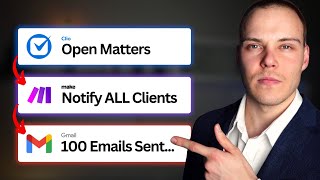

Related Reads
📰
📰
📰
📰
Entity Resolution: Why "Show Me Everything About This Customer" Is So Hard
Dev.to AI
Dari Membuat Program Pendeteksi Hujan Sampai Hak Cipta: Apa yang Saya Pelajari Tentang Data &…
Medium · Programming
How to Query Databricks from Salesforce Apex (Without Copying a Billion Rows)
Dev.to · Md Mohiuddin
Can a Data Science Course Really Change Your Career in 2026?-IABAC
Medium · Data Science
Chapters (16)
Intro
0:36
Clio Manage Review Breakdown
2:45
Matter & Contact Management
22:50
Calendar Management
27:14
Task Management
34:12
Time & Expense Tracking
38:57
Billing & Payments
47:16
Document Management
55:56
Communications & Client Portal
1:03:57
Reporting & Analytics
1:08:07
Automation & Al
1:17:00
Integrations & API
1:20:10
Mobile App Experience
1:22:41
Security, Data & Compliance
1:26:05
Pricing
1:28:12
Final Verdict
🎓
Tutor Explanation

 DeepCamp AI